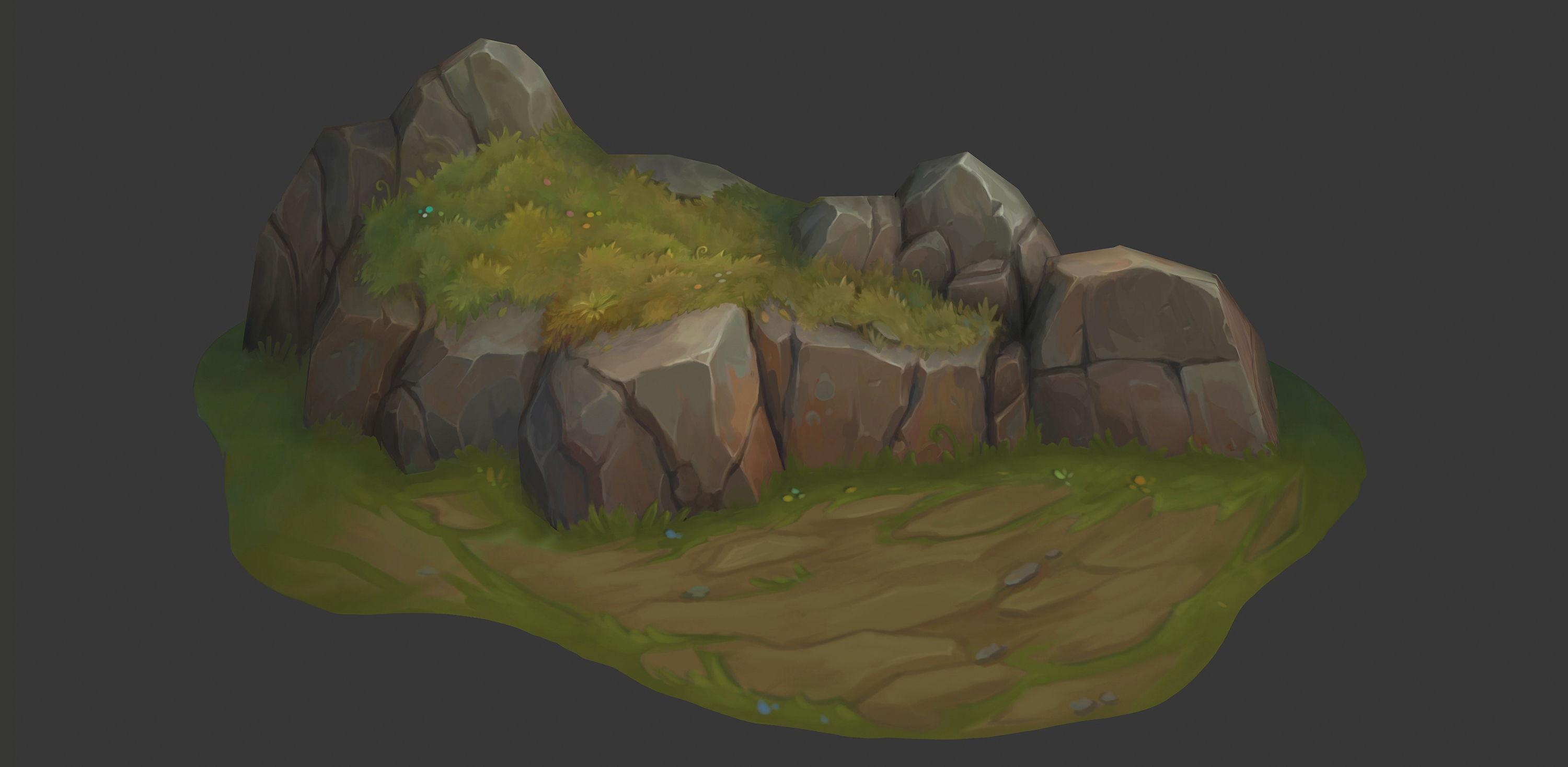
Skull Wall



Introduction
Hello, my name is Adam Sharp and I’m a senior environment and material artist working at The Chinese Room.


Goals & inspiration
This material is part of a larger personal environment I’m currently developing.
I wanted to create an interesting Substance Designer material for one of the main areas, loosely based on some of the references I’ve gathered for the project below.

Graph overview
This is an overview of the graph I’m going to break down.
It’s not overly complex, which is helped by using baked height from meshes in Substance Designer instead of creating everything with nodes in Designer.
The graph is broken down into key areas, which is an important organizational step, especially if you need to make tweaks and changes.

Height
Starting with the base height. I warped two noises together, adding in a slope blur using a blurred version of the combined noises for the slope.
This helps push the shapes together to give a more organic feel. I then added in a few more warps and grunges to break the shapes up further.

Skulls
Next, I added the main skull shapes.
These were created by baking 3D meshes to planes. I decided to use this workflow as it simplifies the graph and is quicker to iterate on, should I need to change any of the base skulls.
It’s important to know when to use different workflows, as not everything needs to be made from nodes.
From a production point of view, you don’t always have the time to make everything in Designer.

I baked four versions with different rotations/jaw positions for variation.
These were then levelled out to get rid of any height below the skull.

Next, a slope blur with Clouds 2 was added to break up the shapes a little.

The skull shapes are then added over the base height with a shape splatter, which helps rotate and position the shapes in a more organic way.
Shape splatters are a great way to layer up different shapes and can output a mask for those shapes, which is what is used next.

Next, another base height was created for the skulls to blend with. Starting with a tile sampler for some straight random brightness lines.
They are then broken up with some random noises to build up some height variation and breakup. This was then warped using the shape splatter-to-mask node so the background warps around the skulls to help embed them with the background.
Another slope blur uses a blurred version of the height to pinch the shapes together so they have a smoother appearance. Finally, a histogram range is used to reduce the overall height of the background.


The skulls and background were then blended together with a blurred version of the same mask to help embed them into the background in a natural way.
After that, a very subtle fractal sum base was blended with 0.01 opacity.
This helps to give the surface a rougher look.

Cracks
To help break up the surface further and add some more visual interest, I created some very subtle cracks. They become more visible once the mud pass is added into the crevices during the albedo creation later.
These are pretty simple to create, with a Crystals 1 that’s then warped and displaced to give an interesting shape, which was then run through a high pass and threshold node to isolate the shape.
This was then used in a tile sampler to create some organic crack positions/rotations. Finally, inverted and blended over the main height with Min Darken at a very low 0.01.
This was kept subtle, as I didn’t want details everywhere, trying to maintain some eye rest.


Moss
The main moss shape was created with a Capsule Shape node with Pattern Specific set to 1. Blended with Linear Gradient set to Multiply to give the moss some height towards the ends of the “strands.”
It was then warped with a Perlin noise to add a bit of shape, then using a Splatter Circular to create the main clump.

Moss Mask
I created a mask for where I wanted the moss to appear.
Curvature, normal & Ao nodes were created using the info from the height so far and fed into a mask builder node.

This mask was used as a mask for the main moss shape splatter nodes.
I like to use the shape splatter nodes for layering up different shapes, as they have a lot of options for blending shapes together and, as mentioned earlier, allow you to output a mask for those shapes.

Lichen
The final part of the height was to add some very subtle lichen.
This was created with a Grunge Map 004, then scattered with a Splatter node. It was blended with the height using Screen at 0.01 to create the final height.


Albedo
I started by warping the height with a Fractal Sum Base to break up the shapes and blending two colour gradients based on that result.
Then, a slight desaturation was applied and blended with a gradient based on the Fractal Sum Base. This helps give some colour variation for the base.
The above lichen setup was then fed into a colour gradient and blended with the existing colour.
I set the lowest colours on the gradient to full alpha so only the main shapes on the lichen would be blended.


Edge Highlight
For the edge highlight, I plugged in the normal to a Curvature Smooth, using the convexity as the output and levelled that out to use as a mask for the blend between the existing colour info and an off-white uniform colour.

Mud
For the mud, I used a Dirt node with a Curvature and Ambient Occlusion from the main height and normal to mask a uniform colour on top of the existing albedo.

Moss Base Colour
Next, I created a base colour that would sit under where the moss was generated. I used a mask builder, utilising the previous curvature and ambient occlusion to mask out the area where I wanted the moss to sit.
The colour itself was another Fractal Sum Base with some green variations.

Moss Main Colour
For the final part of the albedo, I used a simple gradient from the base moss shape to feed into two shape splatter colour nodes.
These take the data from the accompanying moss shape splatter nodes used in the height. The main albedo so far was plugged into the background of the first shape splatter node.
These nodes have a lot of options for varying colour, saturation and luminous values, which help give the moss a less uniform look.


Roughness
The roughness was one of the simplest to create, as it used a lot of data already created for the height. Again, utilising the info from the height splatter nodes.
I inverted and levelled out the main height to use in the background of the first shape splatter, and inverted and levelled out the main moss shape.
The moss shape was fed into the two shape splatters with variation in the roughness values to add breakup.
Finally, the mud mask was inverted and blended in for the final roughness.


Conclusion
Thanks for reading this article. I hope it’s shared some insight into my process. Obviously, there are many ways and different pipelines you can follow to achieve the same result.
This is the way I went about creating mine.
Looking forward to showing the final environment once it’s finished.
ArtStation: https://www.artstation.com/nads
LinkedIn: https://www.linkedin.com/in/adam-sharp-ba81751/
Read more articles
You might also like these articles.