Śankh
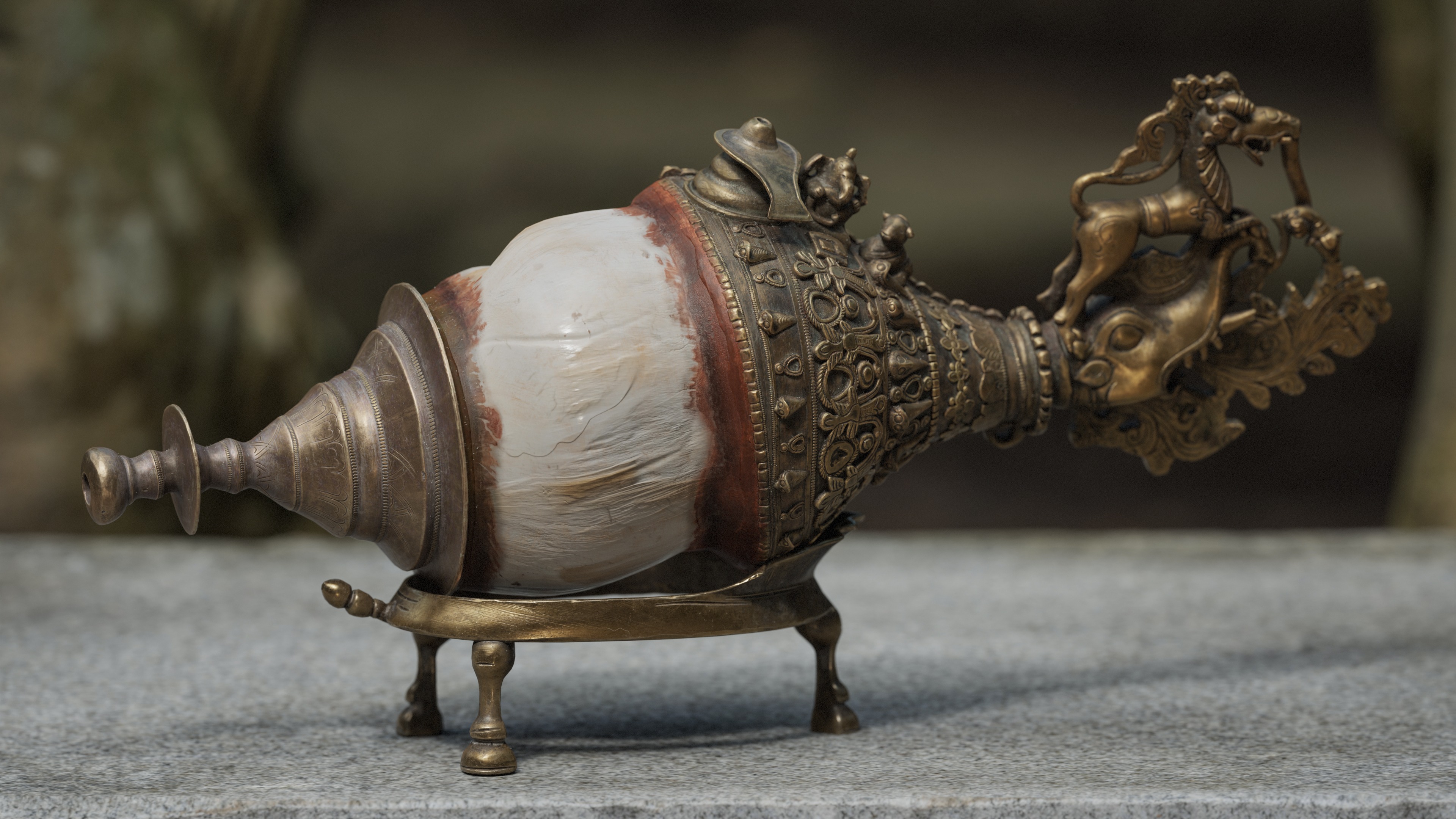


Introduction
Hello there! My name is Oleksandr Yavorskyi.
I'm a 3D Artist specializing in Props and Textures. I started learning 3D more than eight years ago while I was at uni, and I’ve been working in the field for the past four years.
Goals
The main goal was to create something interesting for my portfolio and improve my texturing skills.
I wanted to create something unique that combined contrasting materials, complex shapes, and intricate ornamental details.
Tools
- Blender: modeling
- PureRef: reference board
- ZBrush: sculpting
- RizomUV: UV unwrapping
- Marmoset Toolbag: baking and rendering
- Substance Painter: texturing
- Topaz Gigapixel: upscaling references
- Photoshop: creating stencils
References
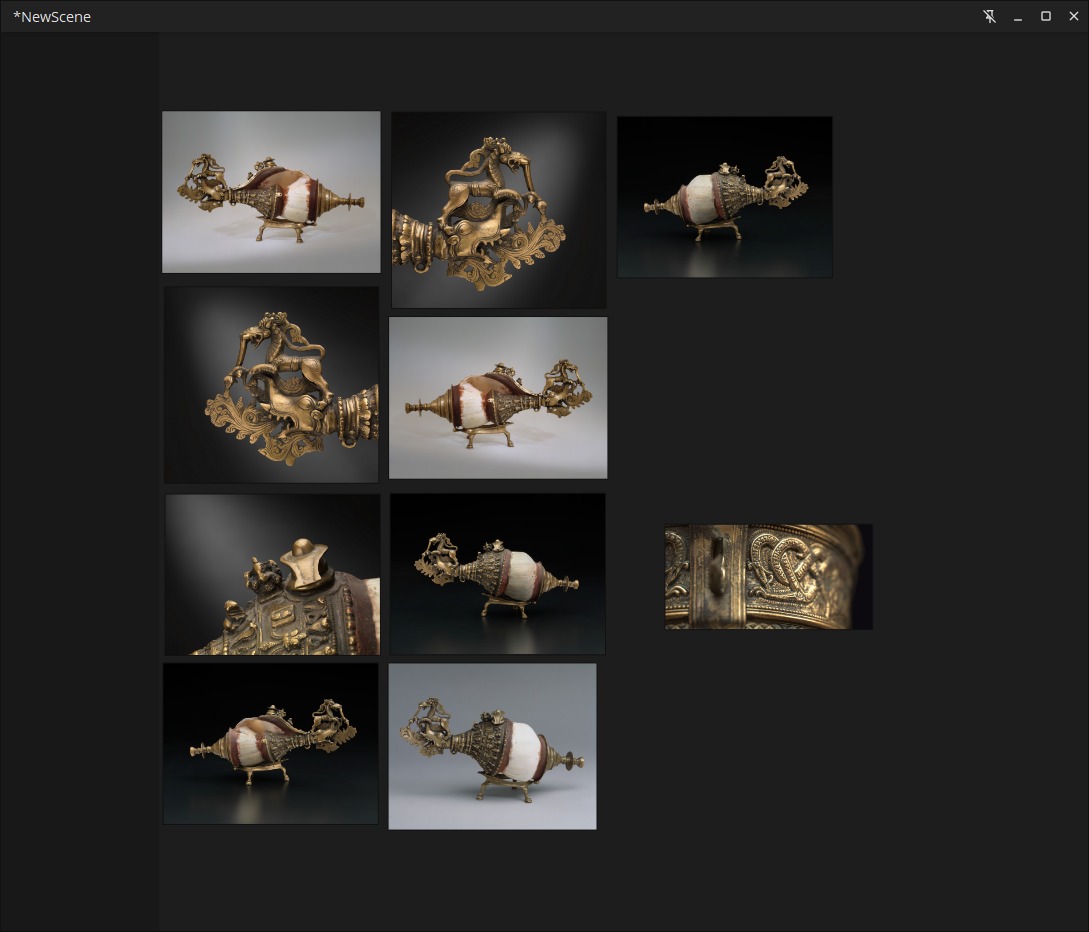
To find references and inspiration for my upcoming projects, I use museum and auction websites. You can usually find unique objects there, and the images are often available in high resolution, which is quite important when creating alpha masks from them.
For this project, the reference images of the model itself were sufficient. To get additional references for deep dirt, I searched ArtStation, selecting works that were similar to mine.
Blockout & Modeling
These two stages were combined because most of the geometry work was done in ZBrush.
During the blockout stage, I created a rough model based on references, focusing only on the general shapes and without adding any additional detail.
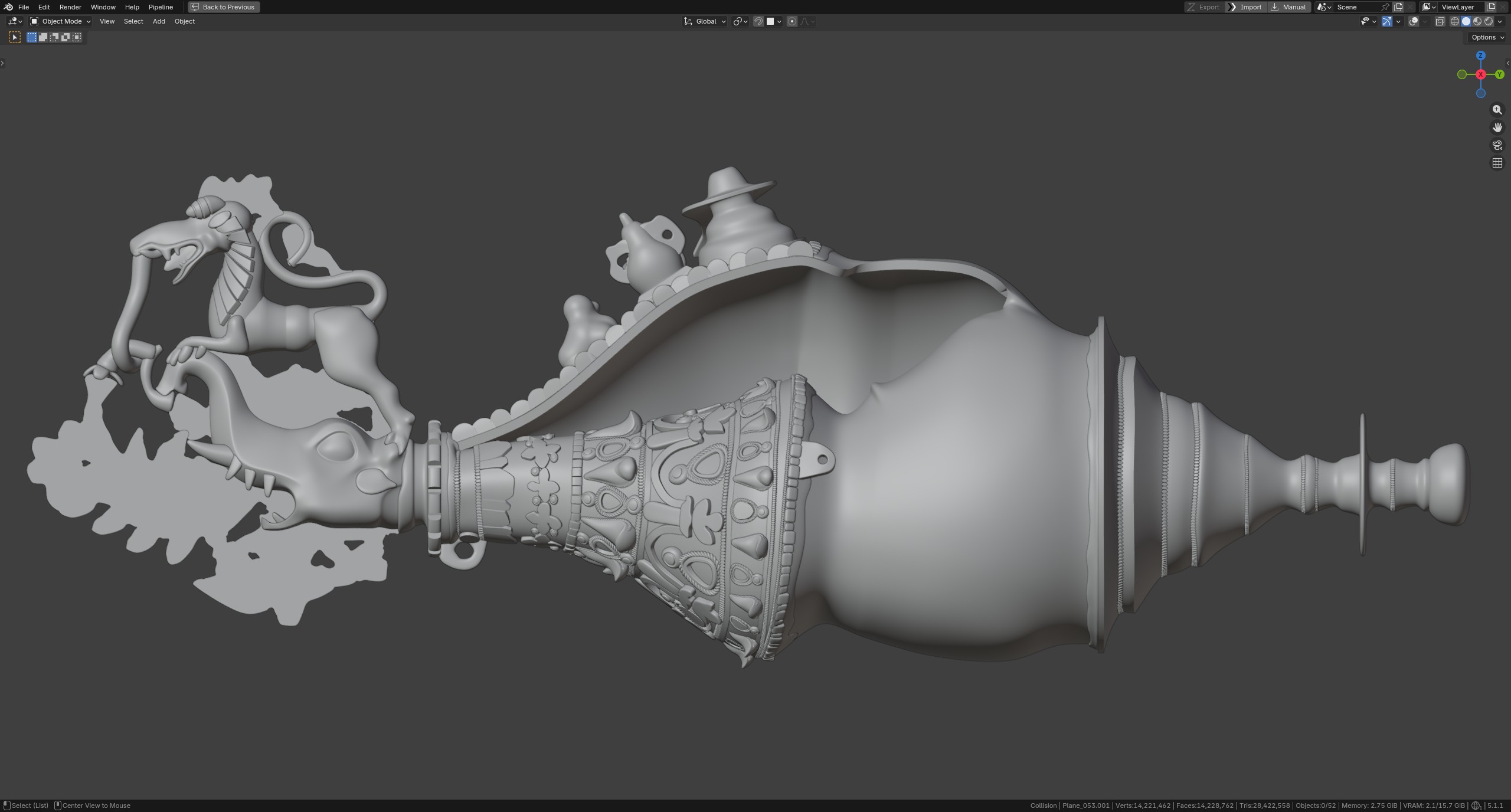
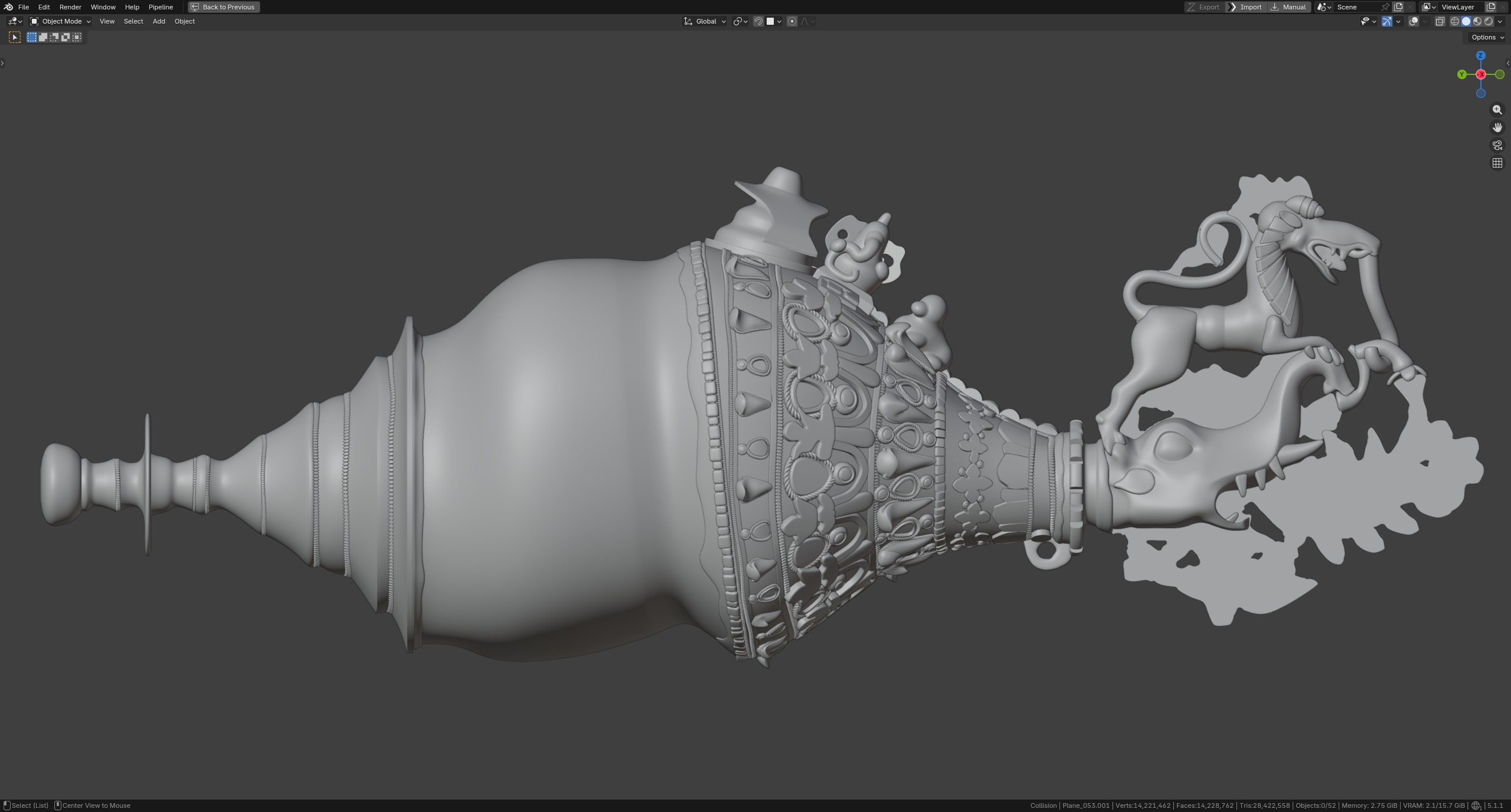
I also created several variations of the ornamental elements and placed them alongside other decorative elements on the surface of the model. To do this, I used the Array Modifier, followed by the Curve Modifier with a pre-created curve, to position them where I wanted.
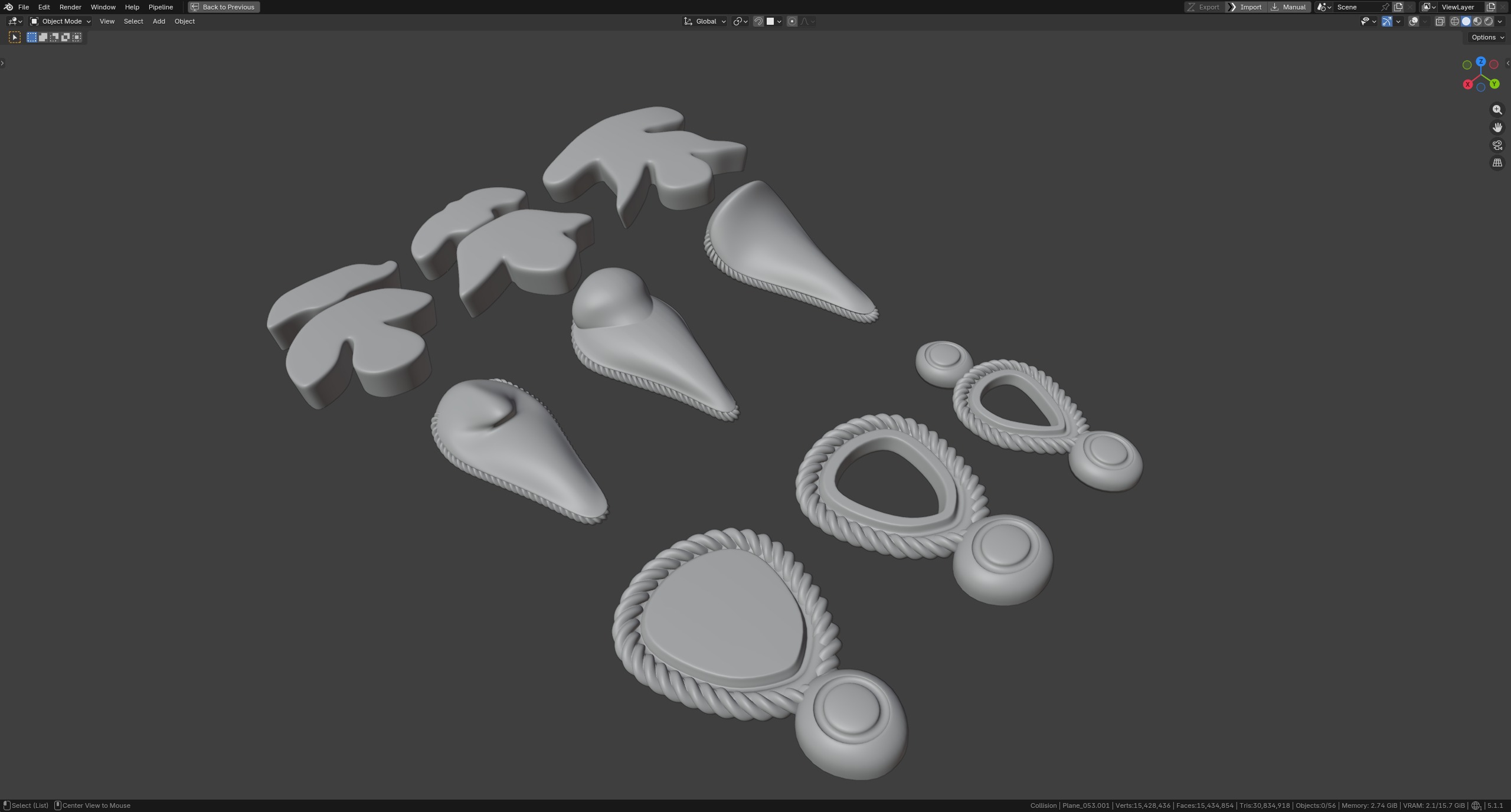
All blockout objects had a Subdivision Surface Modifier applied, and I marked crease edges to preserve sharp edges. They were then exported to ZBrush for further remeshing.
Sculpting: High Poly
This project significantly improved my sculpting skills. I worked a lot with layers: they allow me to save new changes and return to previous stages if I need to make corrections.
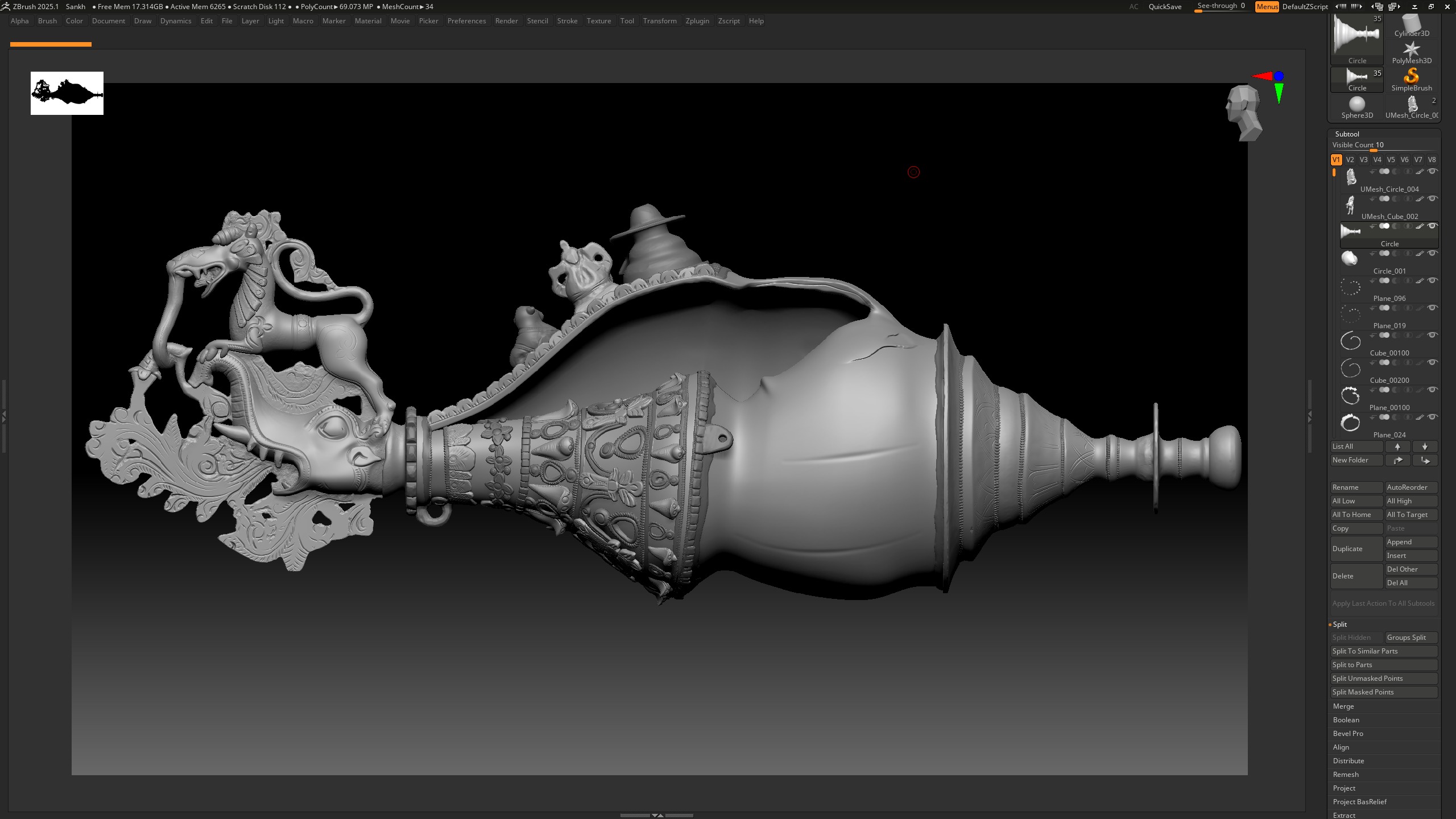
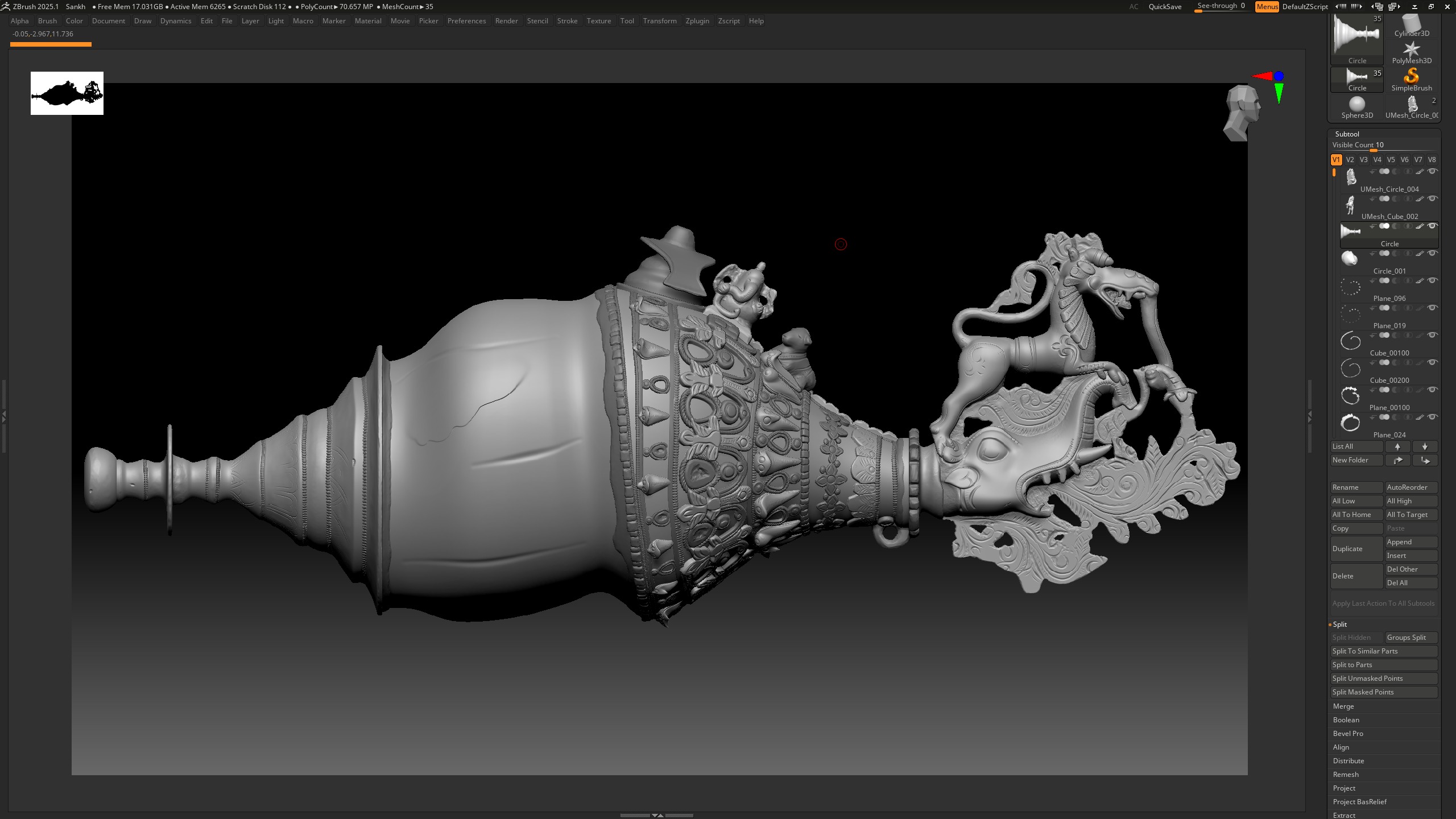
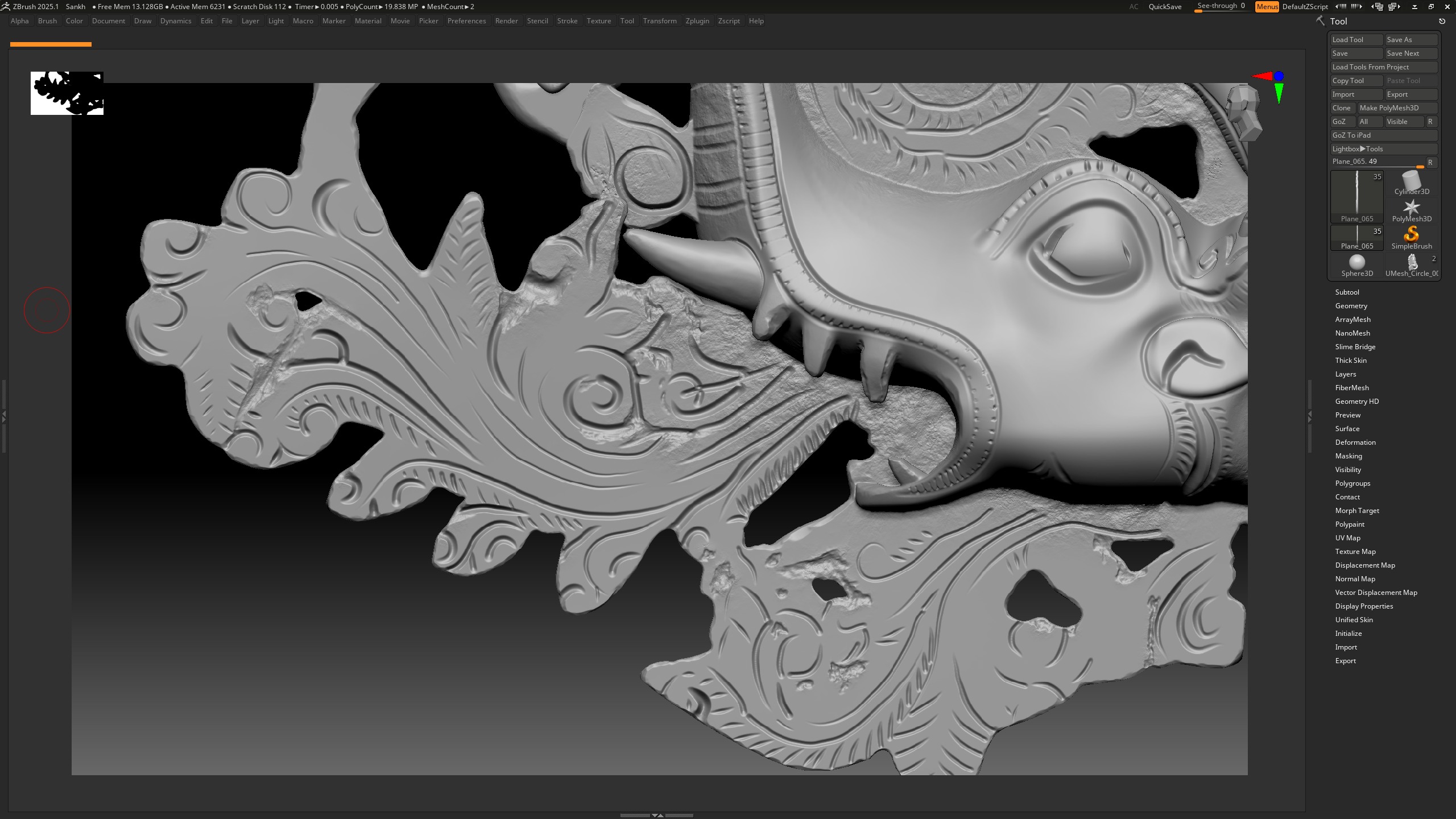
At this stage, I created the carved ornamental details, mechanical damage, and metal corrosion. I sculpted the ornament using the CurveStandard brush, which allows you to draw curves and adjust their profile, size, and stroke intensity.
For the ornament on the cylindrical section, I used the same brush with radial symmetry enabled. I also slightly offset the symmetry center, which made some of the lines less uniform.
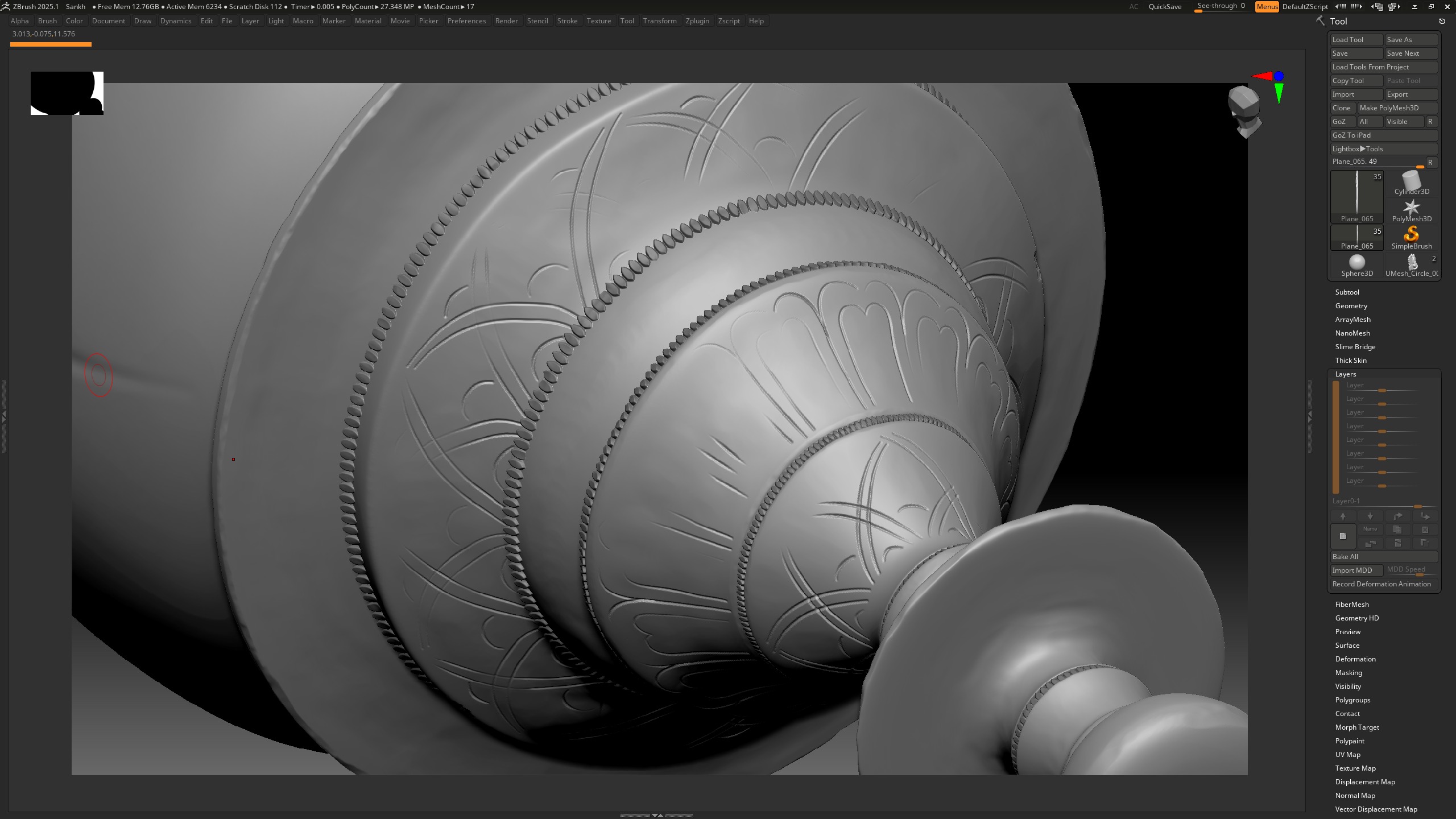
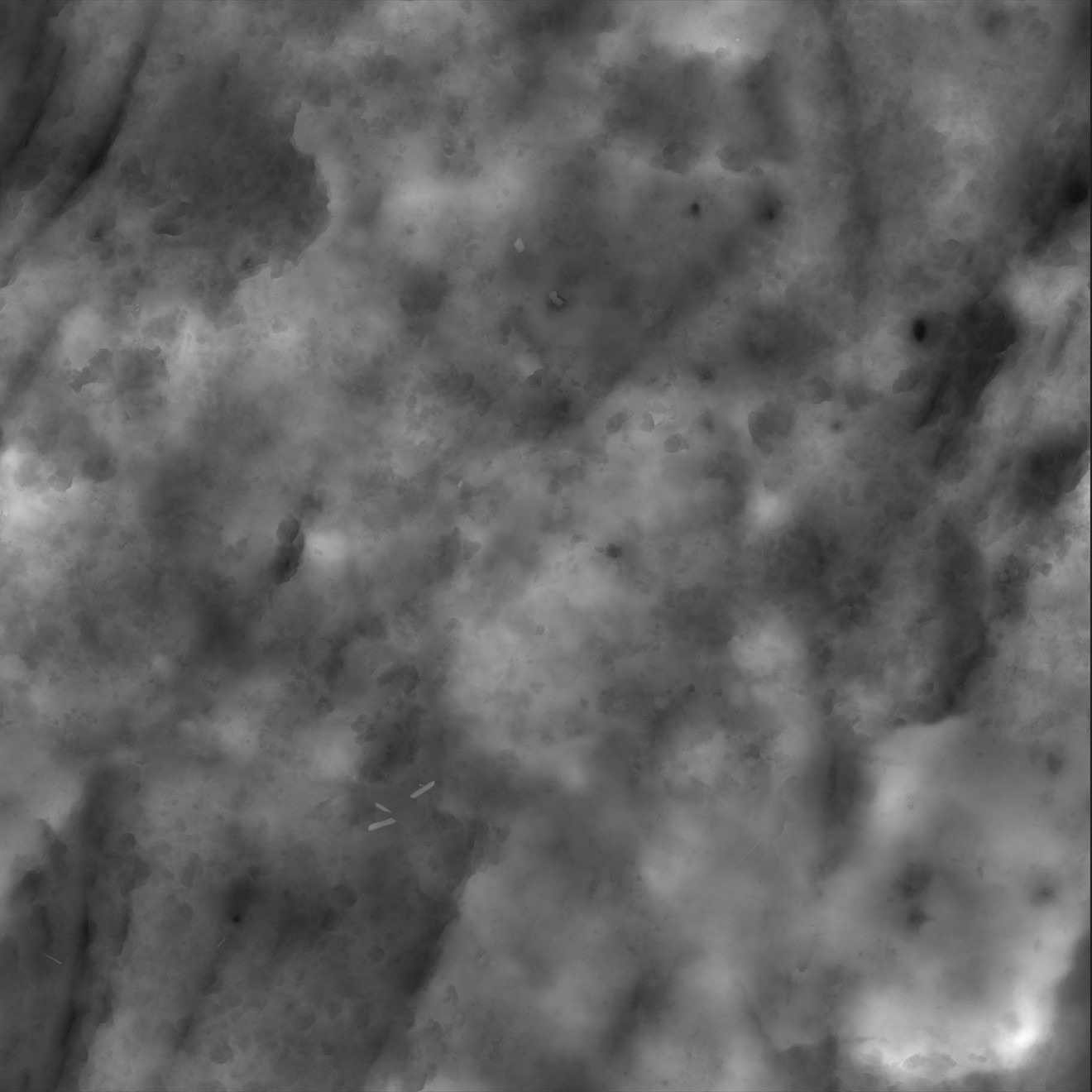
I created the aged-metal surface using DragRect strokes. For the alpha mask, I used a dirt and gravel Height texture from the Quixel Megascans library.
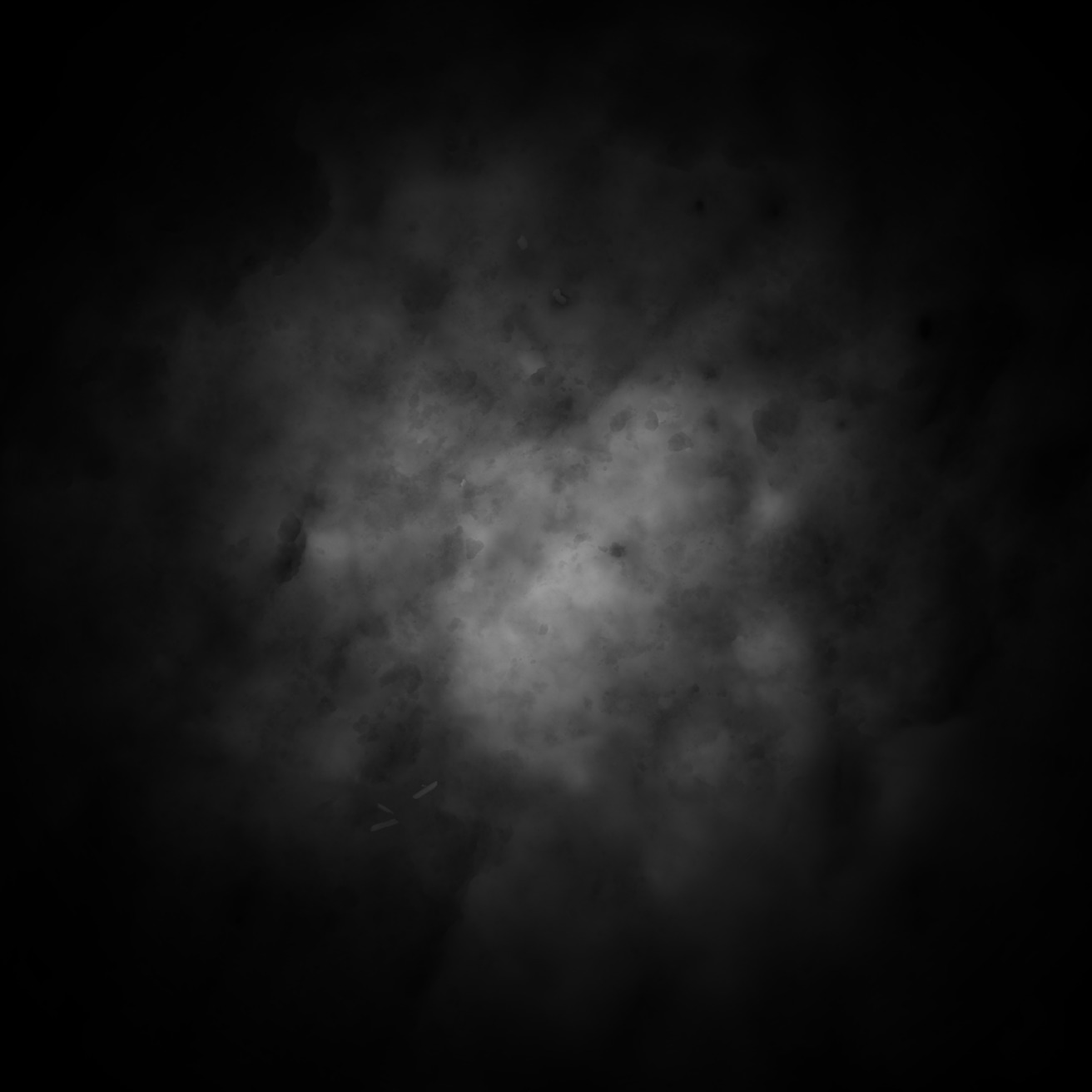
In Photoshop, I transformed the square texture into a circular one and slightly darkened its edges to prevent visible seams when applying it. By adjusting the brush strength and intensity, I achieved the desired metal corrosion effect.
After completing the fine details, I added damage along the edges, including dents and chips. If I was unhappy with a particular area, I disabled the active layer, stored the Morph Target, then re-enabled the layer and refined the problematic areas.
I added several deep cracks, shifts, and growths to the shell. I planned to create the remaining fine details in Substance Painter.
To make the characteristic raised formations on the shell, I masked a small area, pulled it out using the Move brush, and then slightly smoothed the edges.
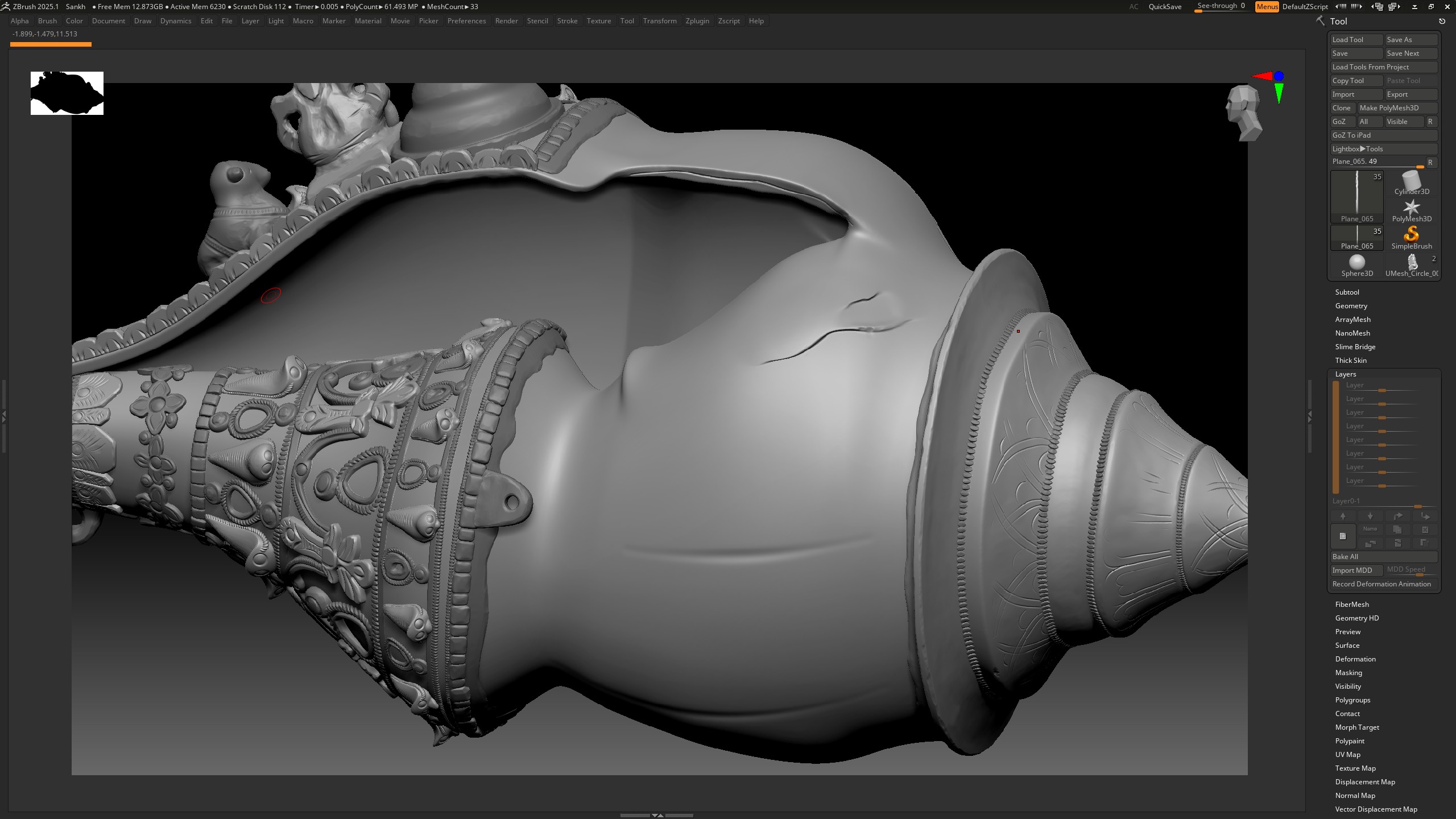
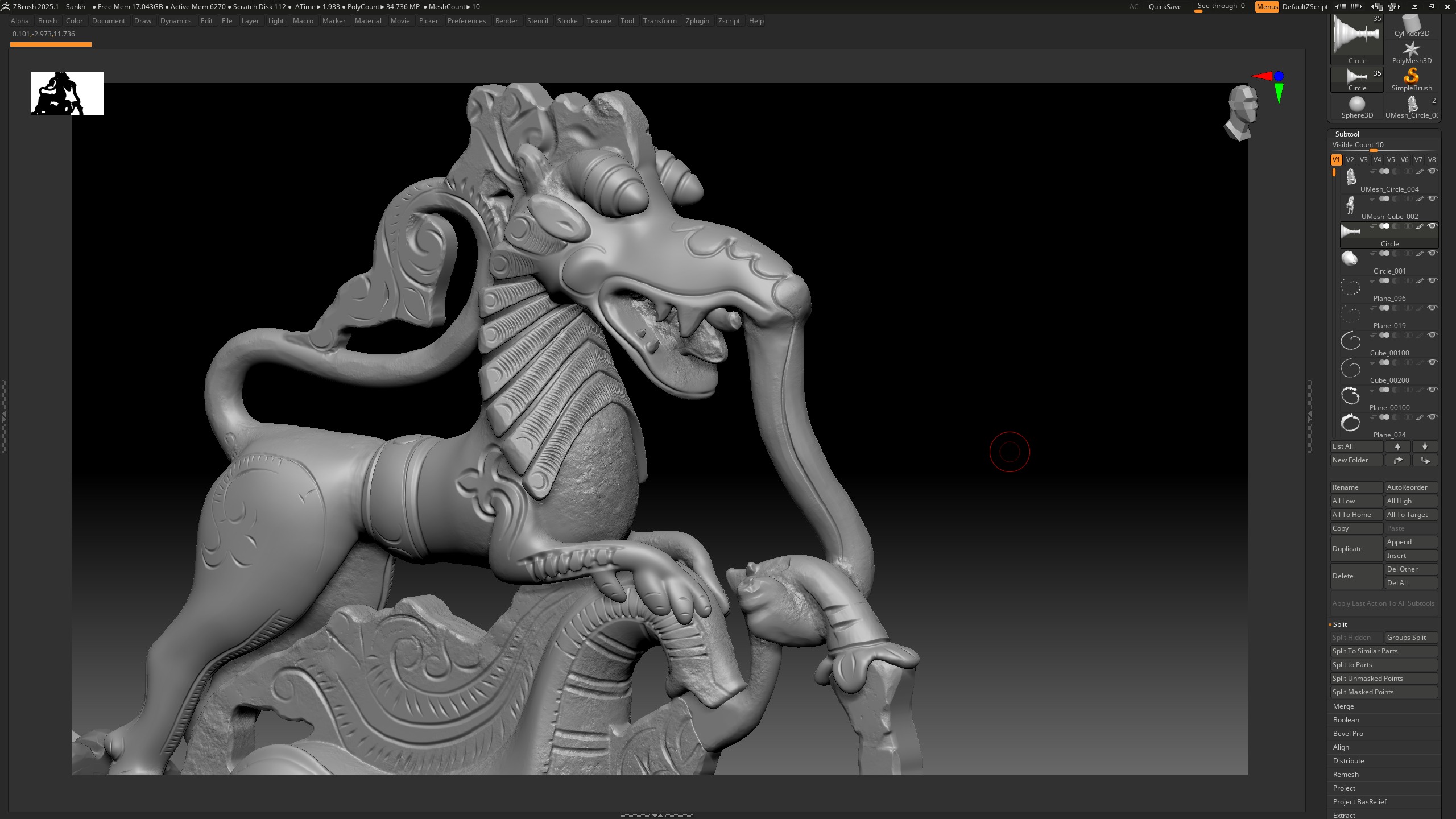
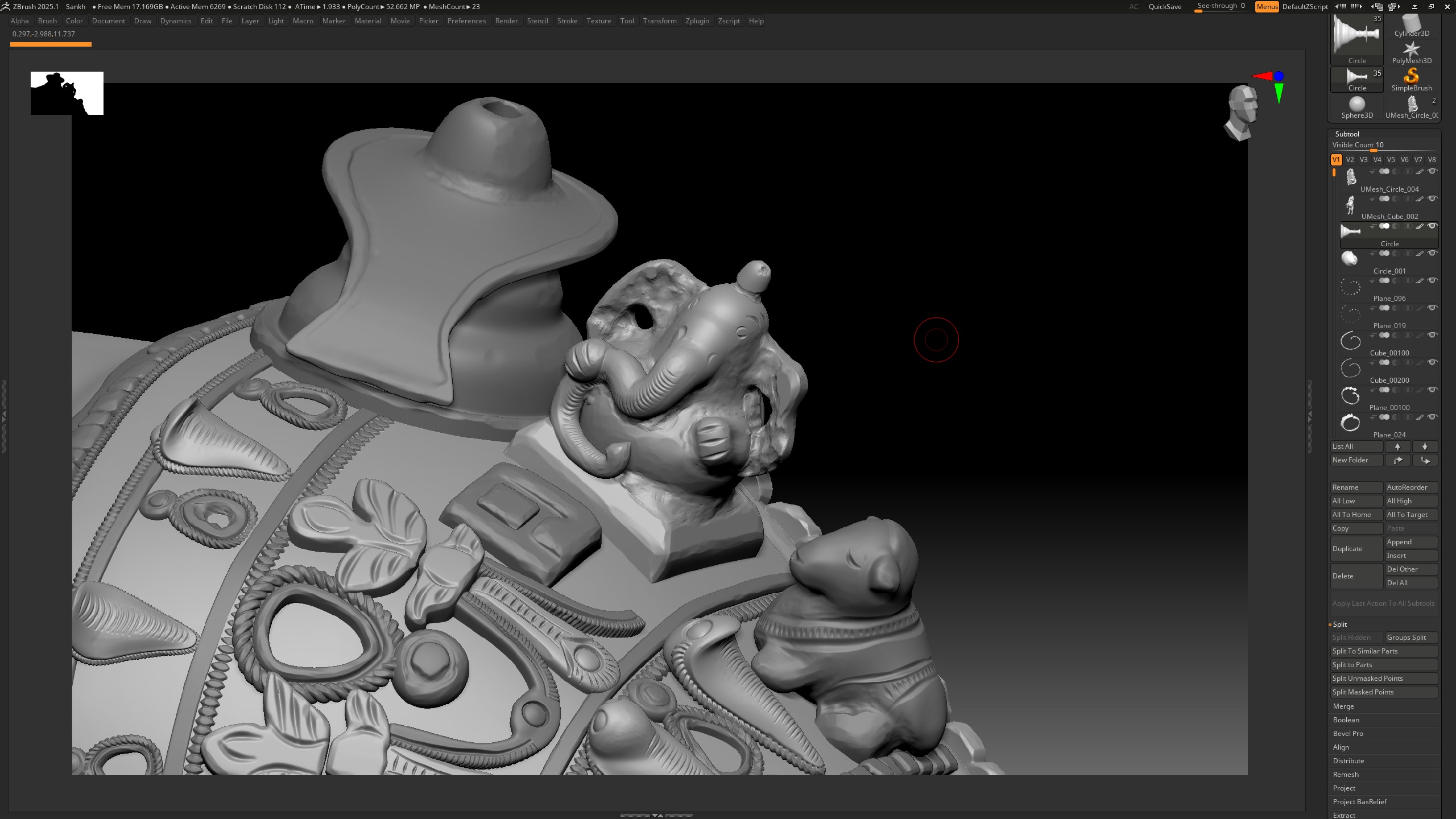
The rest of the sculpting process followed the same principles: adding damage in some areas, building up geometry where objects needed to interact more naturally, and moving or pulling out individual sections where necessary.
Low Poly
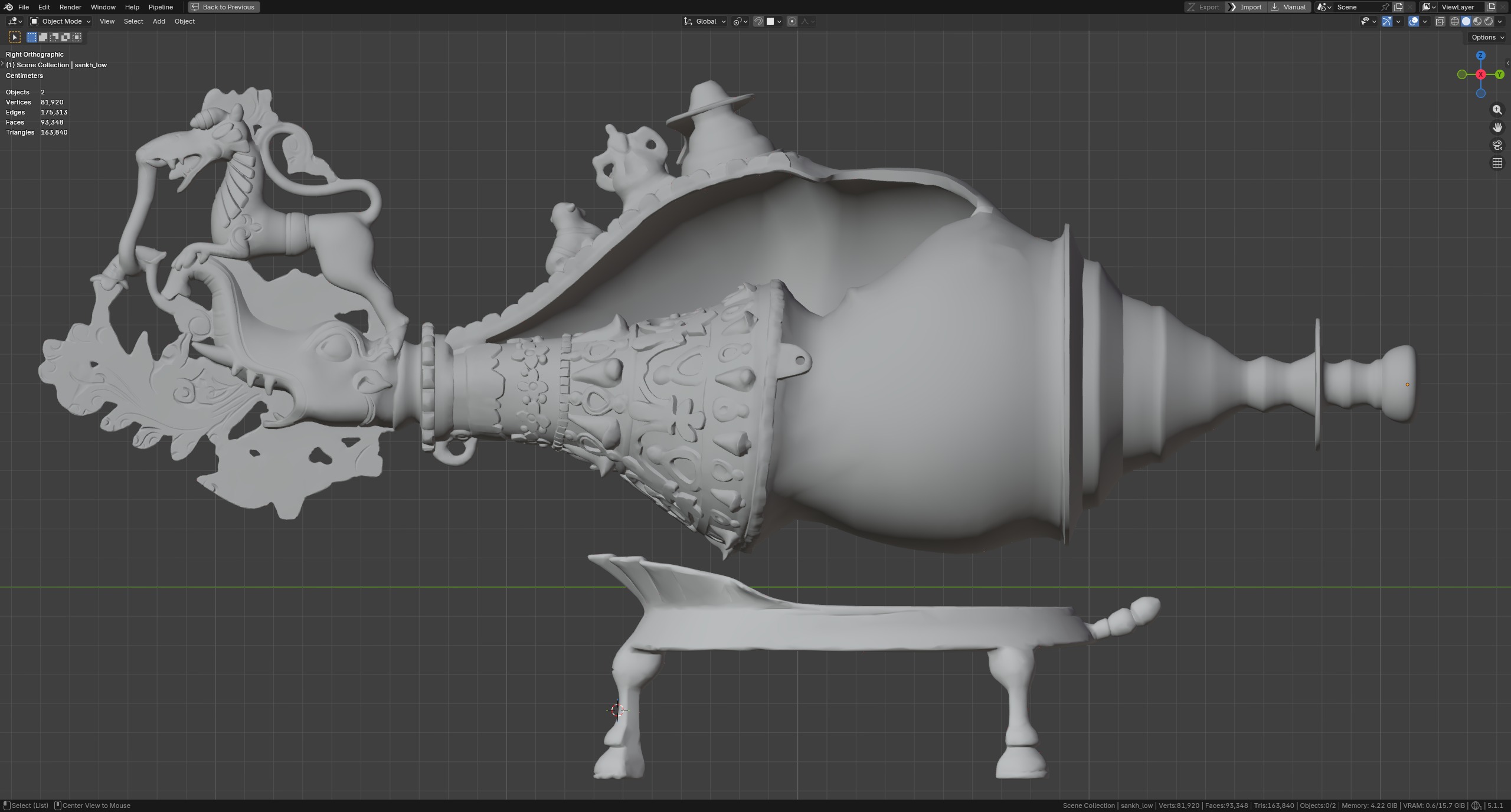
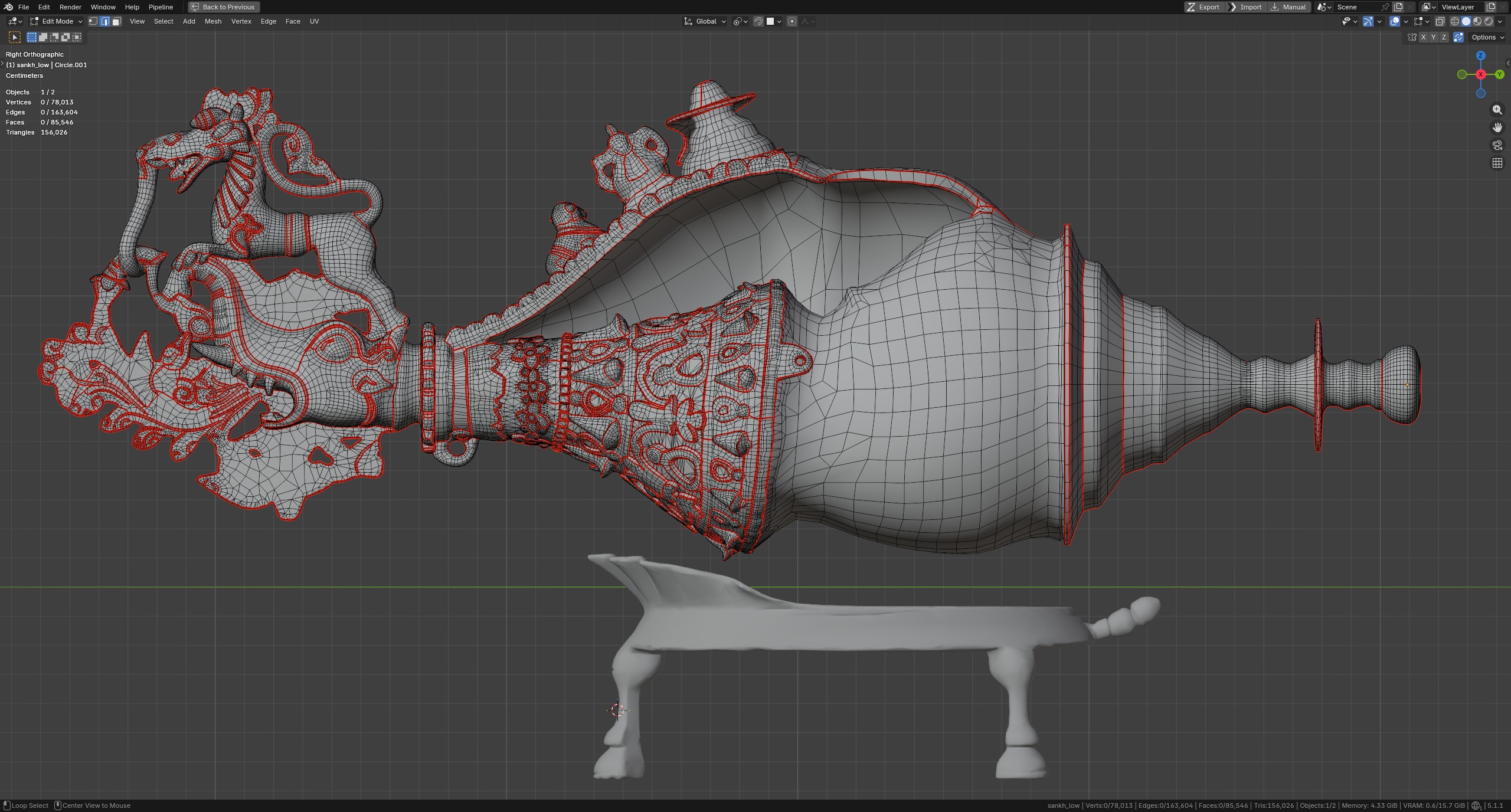
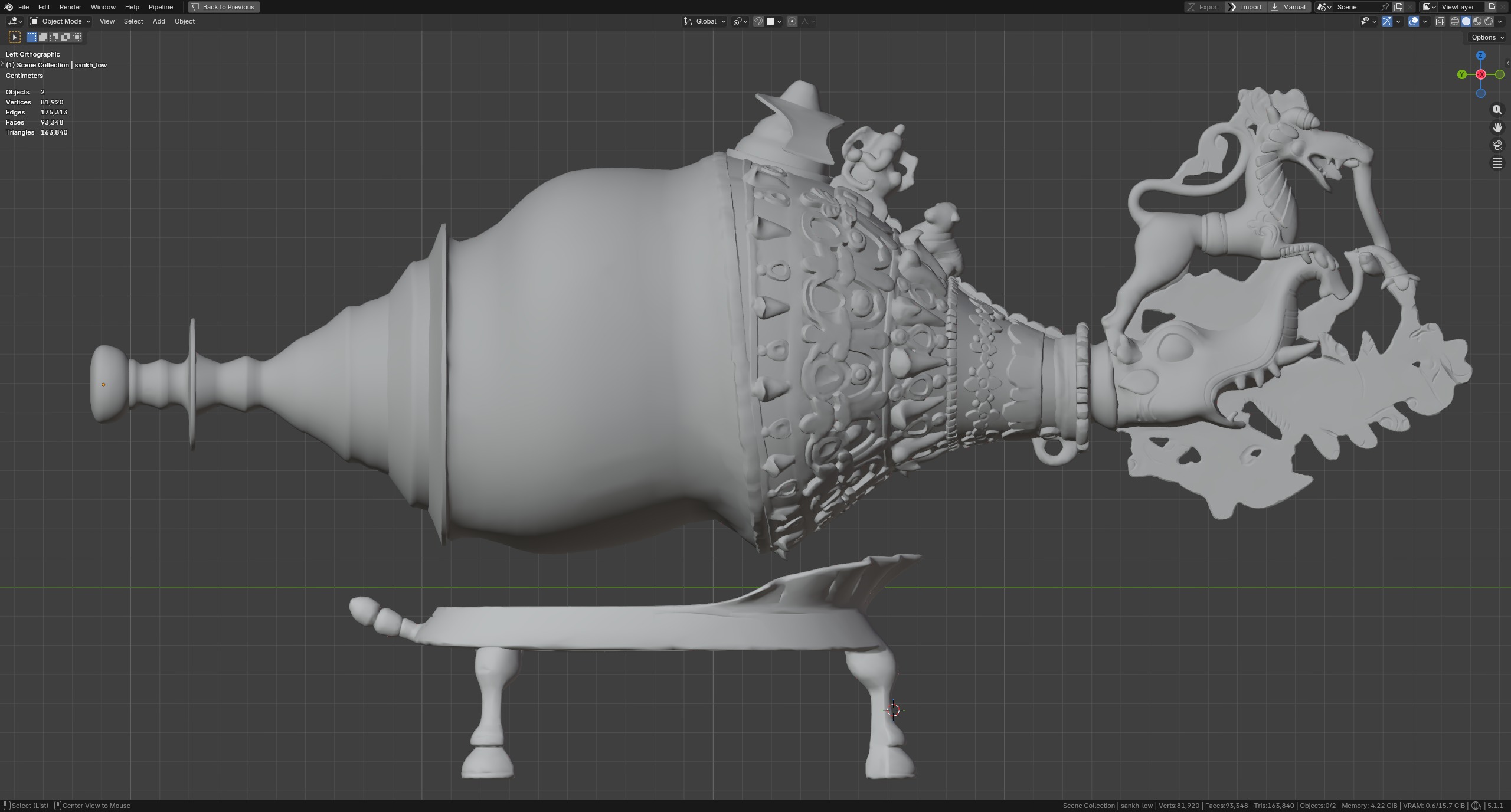
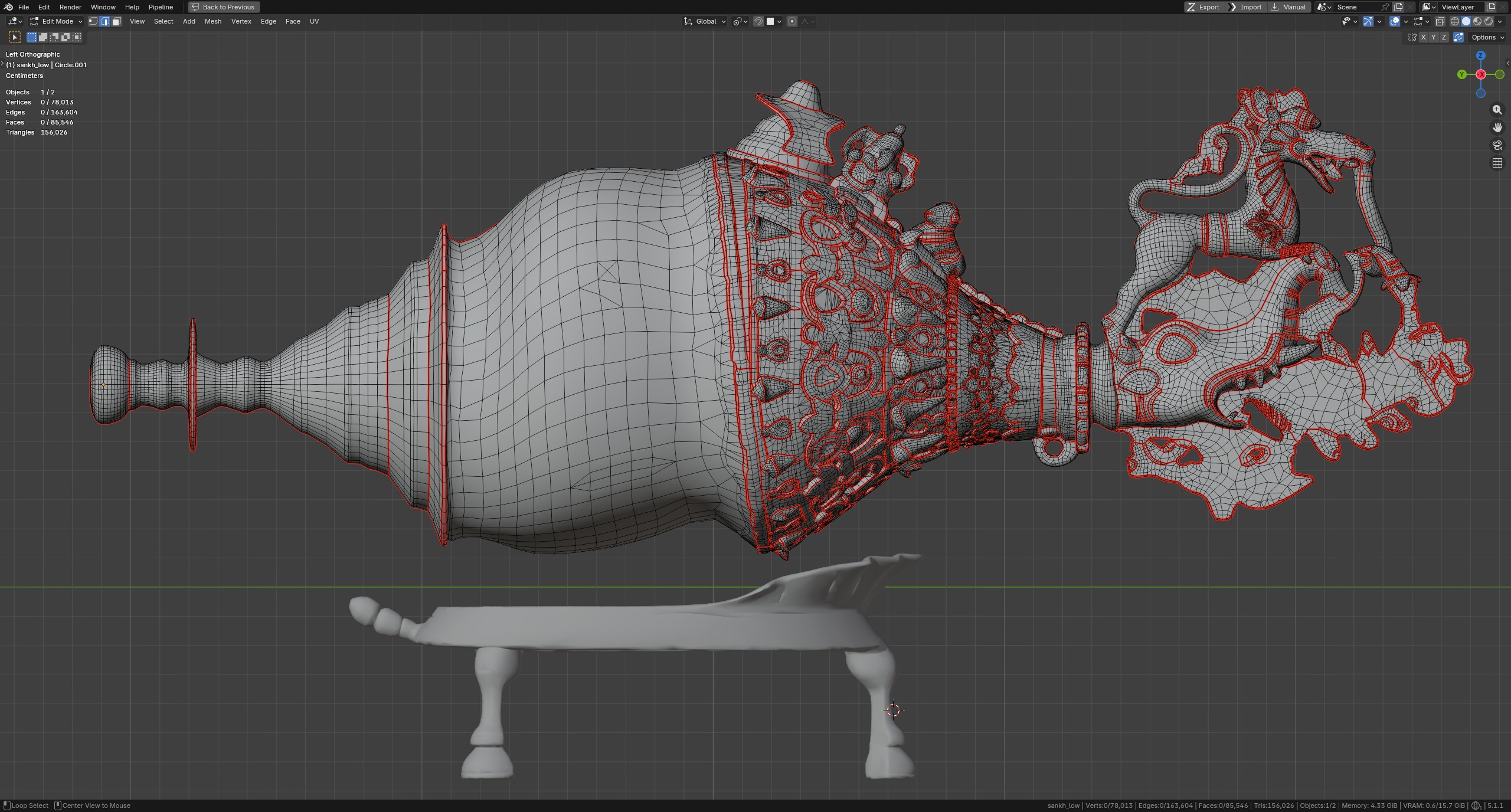
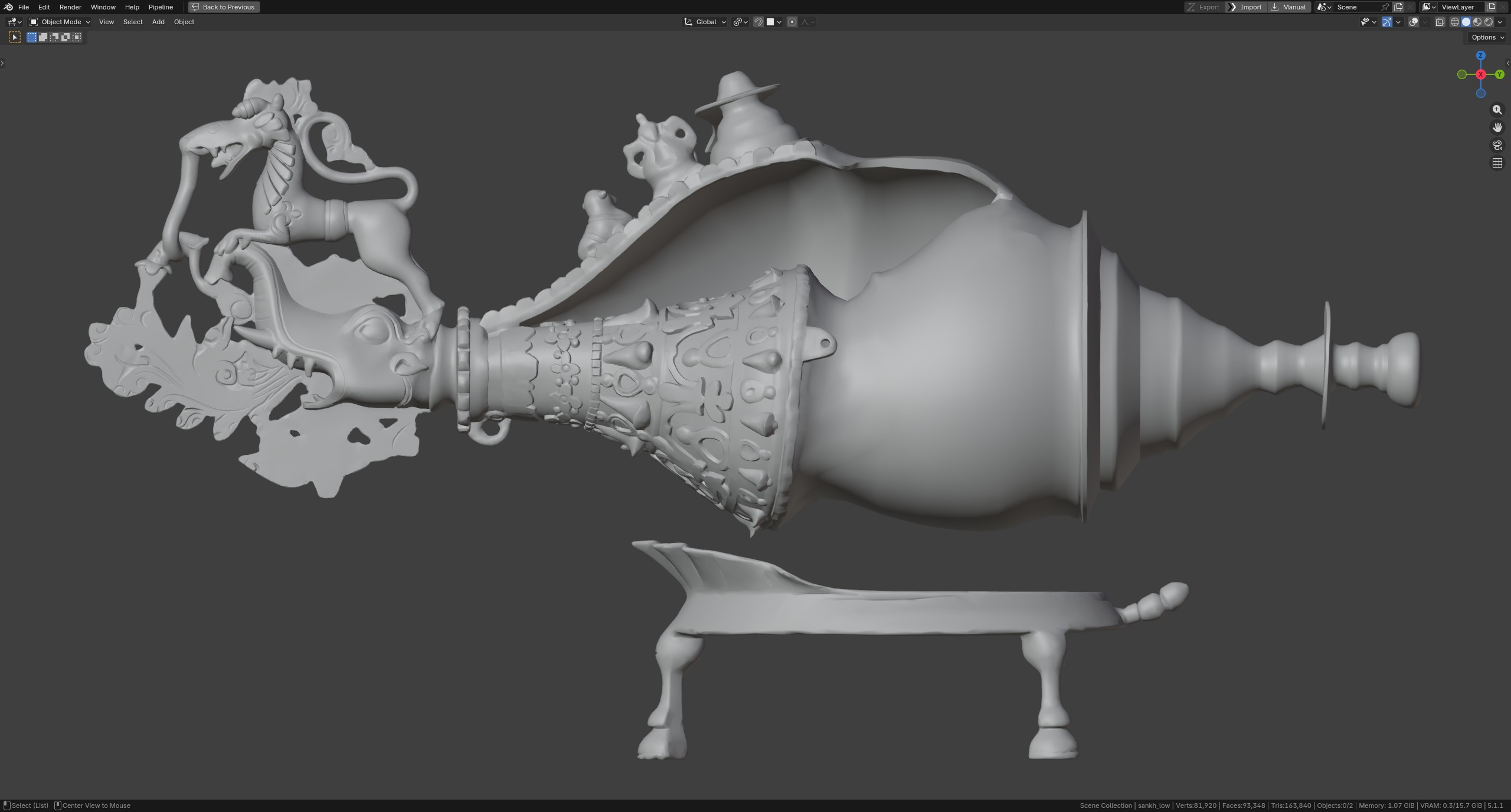
To speed up the retopology process, I used the RetopoFlow add-on. I think a standard Decimate workflow could have been sufficient for a portfolio piece and would have saved time.
However, in that case, the model might have had more polygons, suffered from shading issues, and been more difficult to unwrap. For me, it’s important to monitor the results at every stage of the process.
UVs & Baking
I marked all UV seams and hard edges in Blender. The unwrapping and packing were done in RizomUV. Wherever possible, I tried to straighten the UV islands to make more efficient use of the texture space.
After several test bakes, I determined the texel density I needed. Based on that, I settled on the final number of texture sets: four for the main model and one for the base.
Since this was a portfolio project, showing as much detail as possible was more important to me than minimizing the number of texture sets.
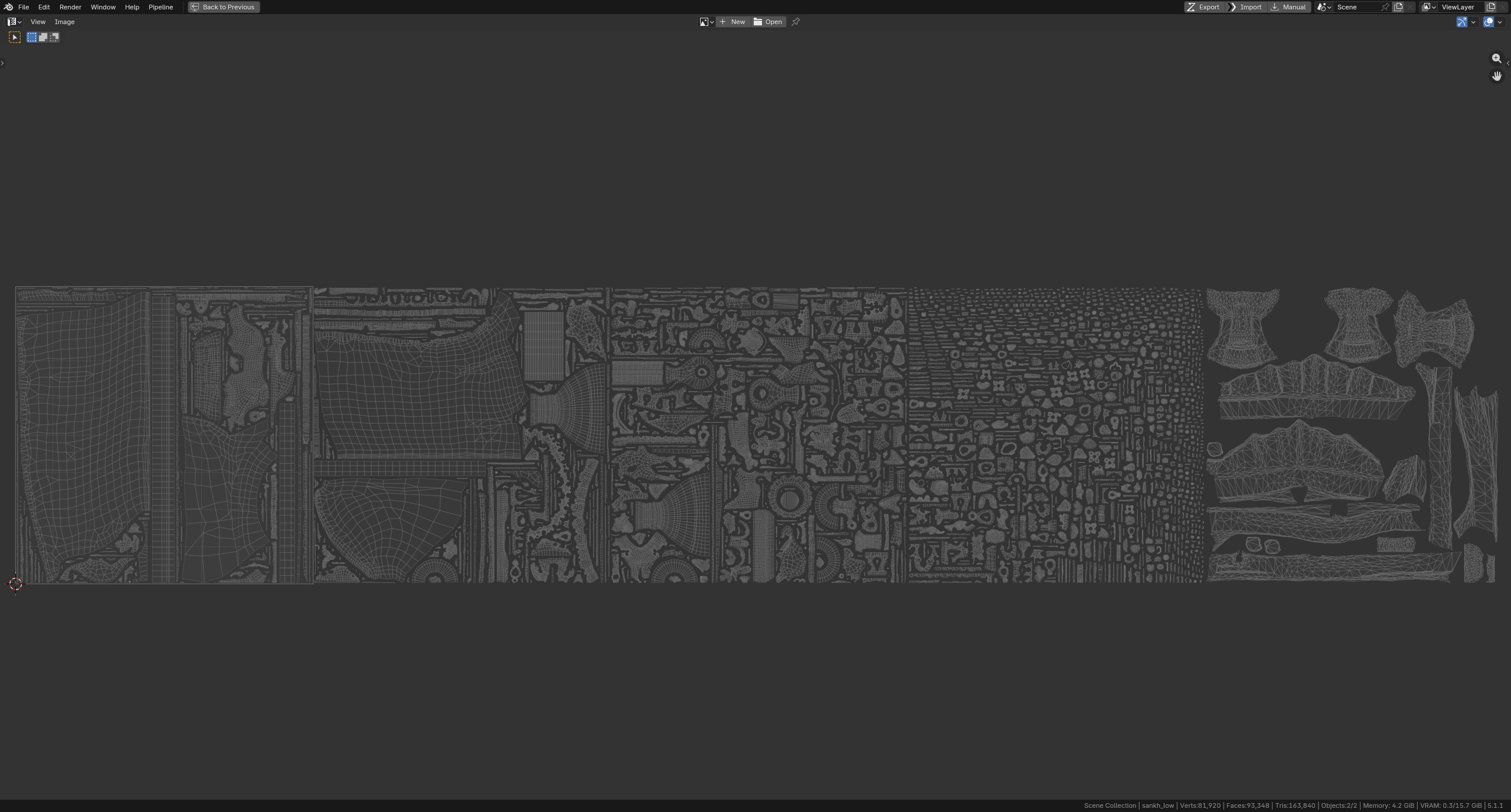
I performed the bake in Marmoset Toolbag 5. This version introduced support for UDIM baking, which came in handy for this project.
It is important to inspect the model carefully after baking to check for artifacts. In my case, I had to go back and adjust the low-poly shell several times to make its silhouette match the high-poly version more closely.
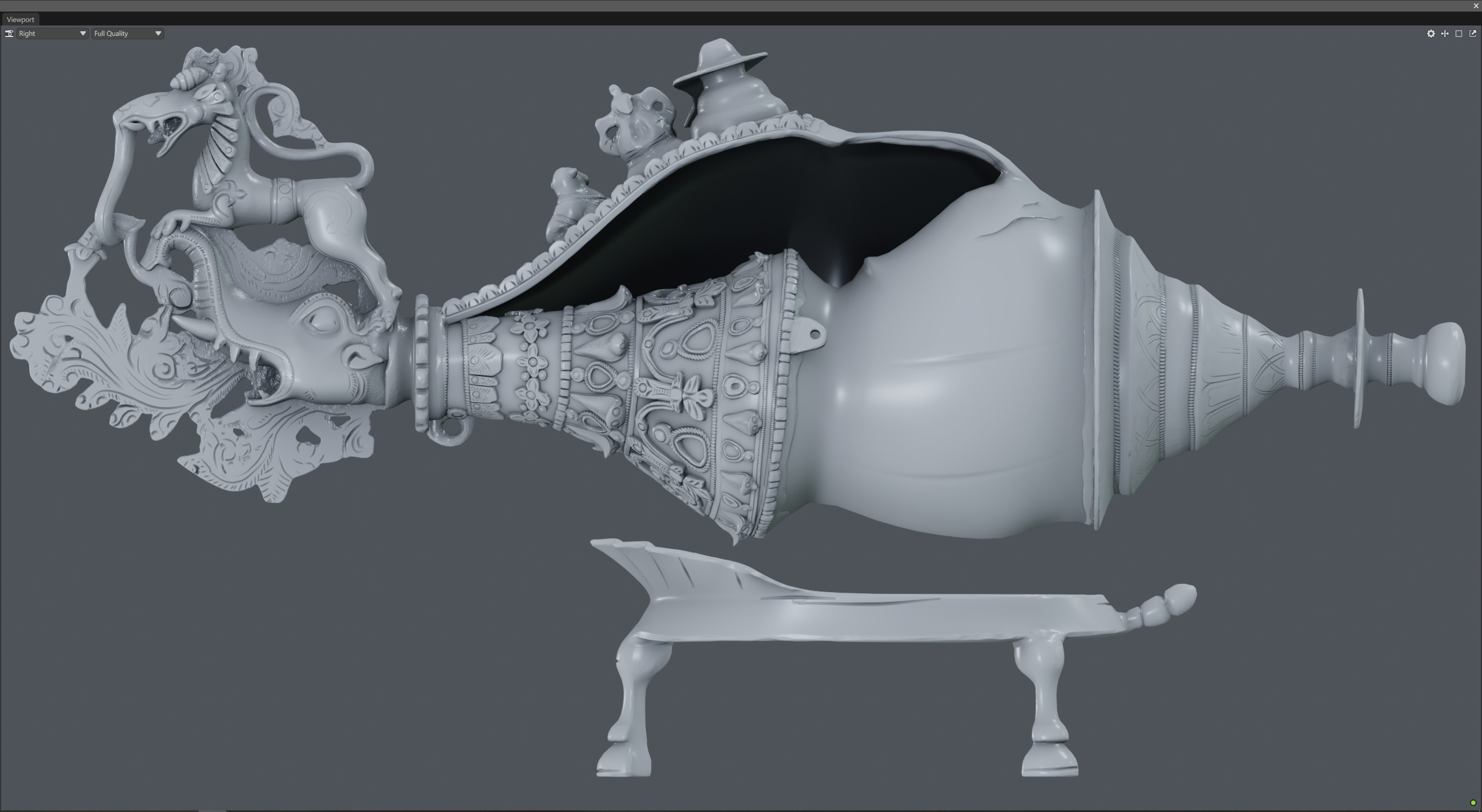
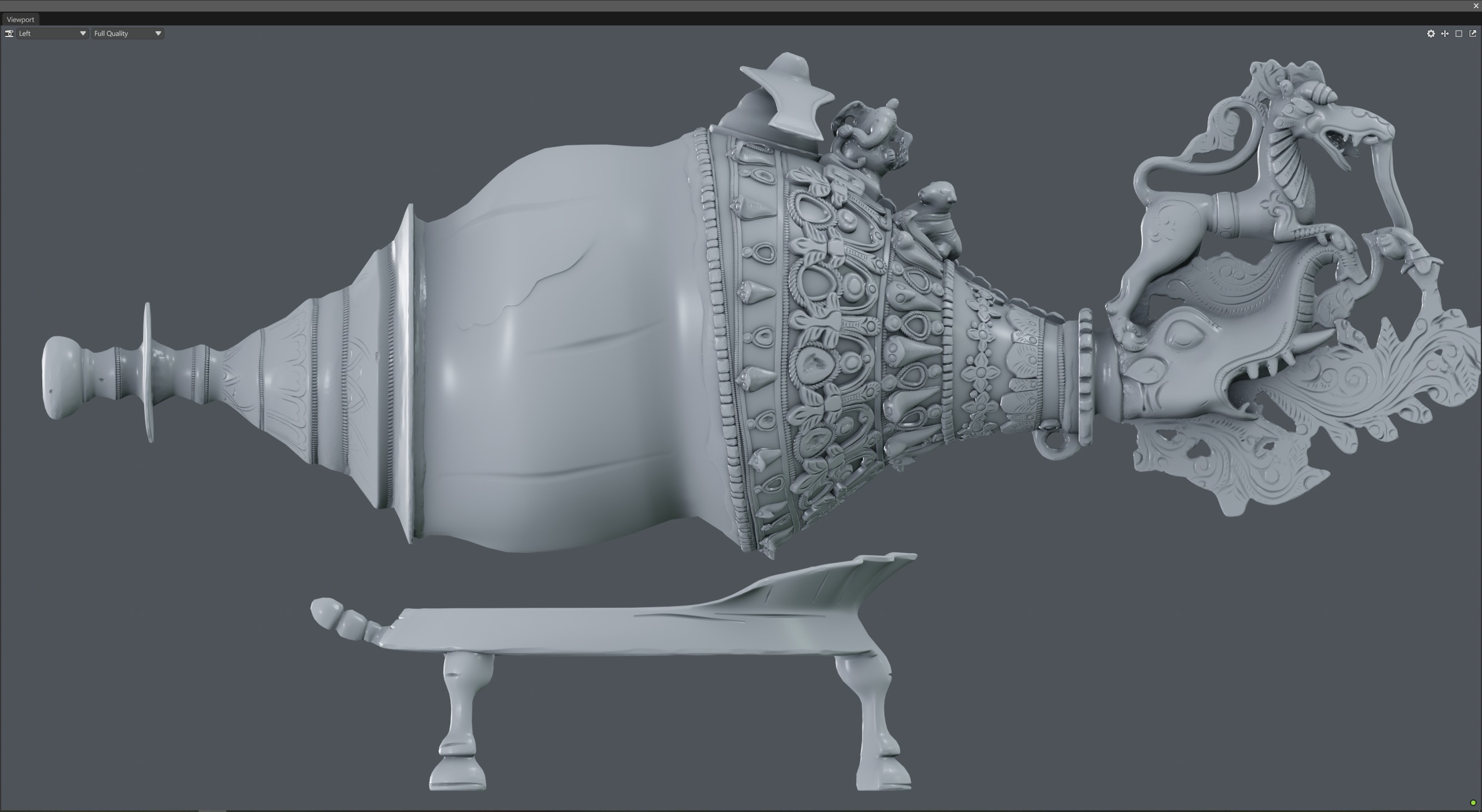
If your scene contains many objects, I recommend developing a consistent naming convention. For example, use the same base name for corresponding groups of elements and add the _low and _high suffixes. This makes setting up the scene for baking much faster.
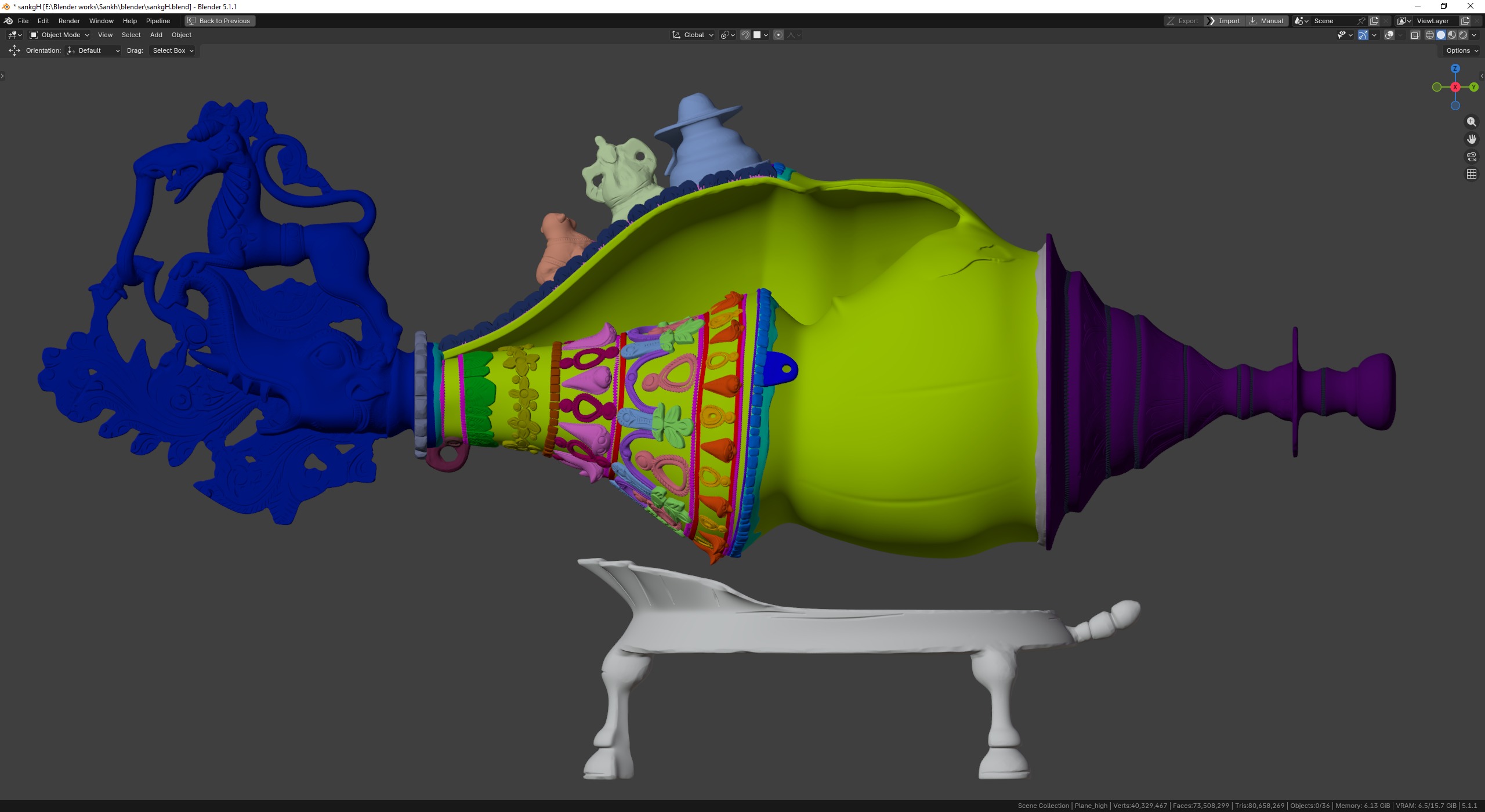
In addition to the standard maps, I also baked a Vertex Color Map to speed up mask distribution, along with Cavity and Convexity maps, which can be useful when creating dirt masks.
Texturing
Since the model had more metal parts, I started texturing with the shell.
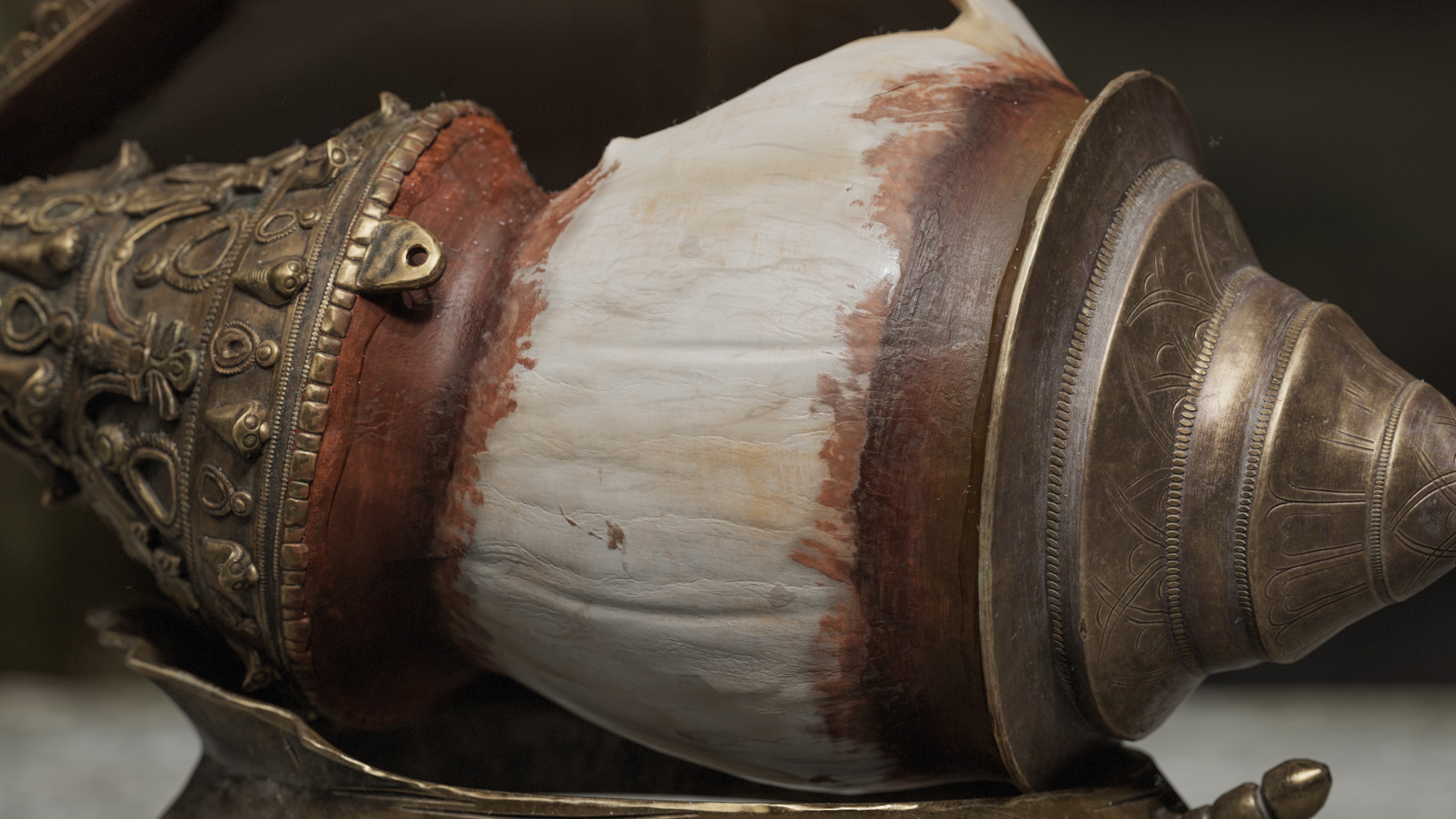
First, I want to explain the surface treatment in more detail. The shell has a wave-like effect created by overlapping layers, and reproducing it required a slightly unconventional approach.
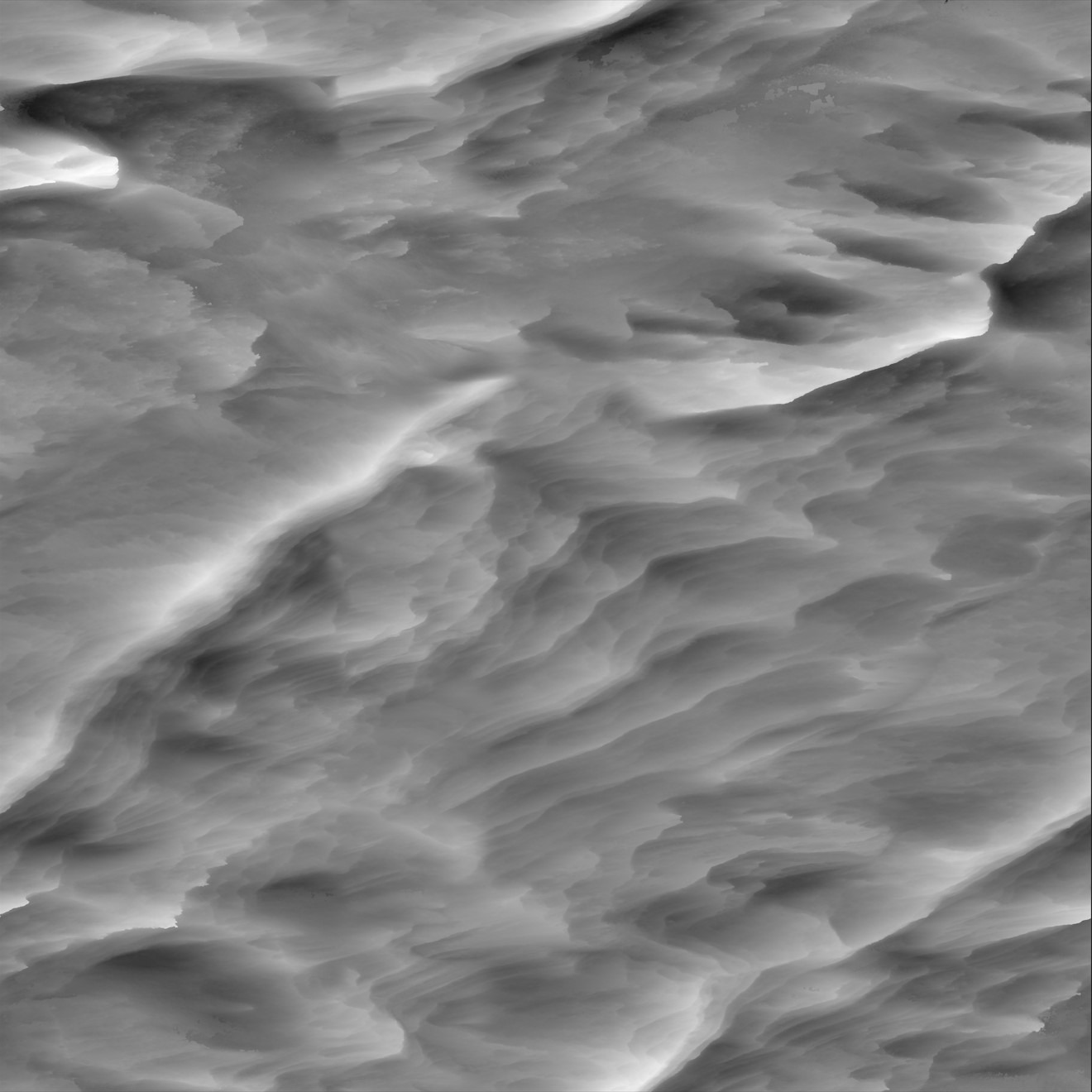
In the Quixel Megascans material library, I found the “Fresh Windswept Snow” material, which had a texture with a suitable wave-like relief with a sharp drop-off.
Then I created a material using Cylindrical projection and attached a Height map from the snow material to it. I also created an Anchor Point on this layer so I could use it in subsequent layers and emphasize details using modifiers.
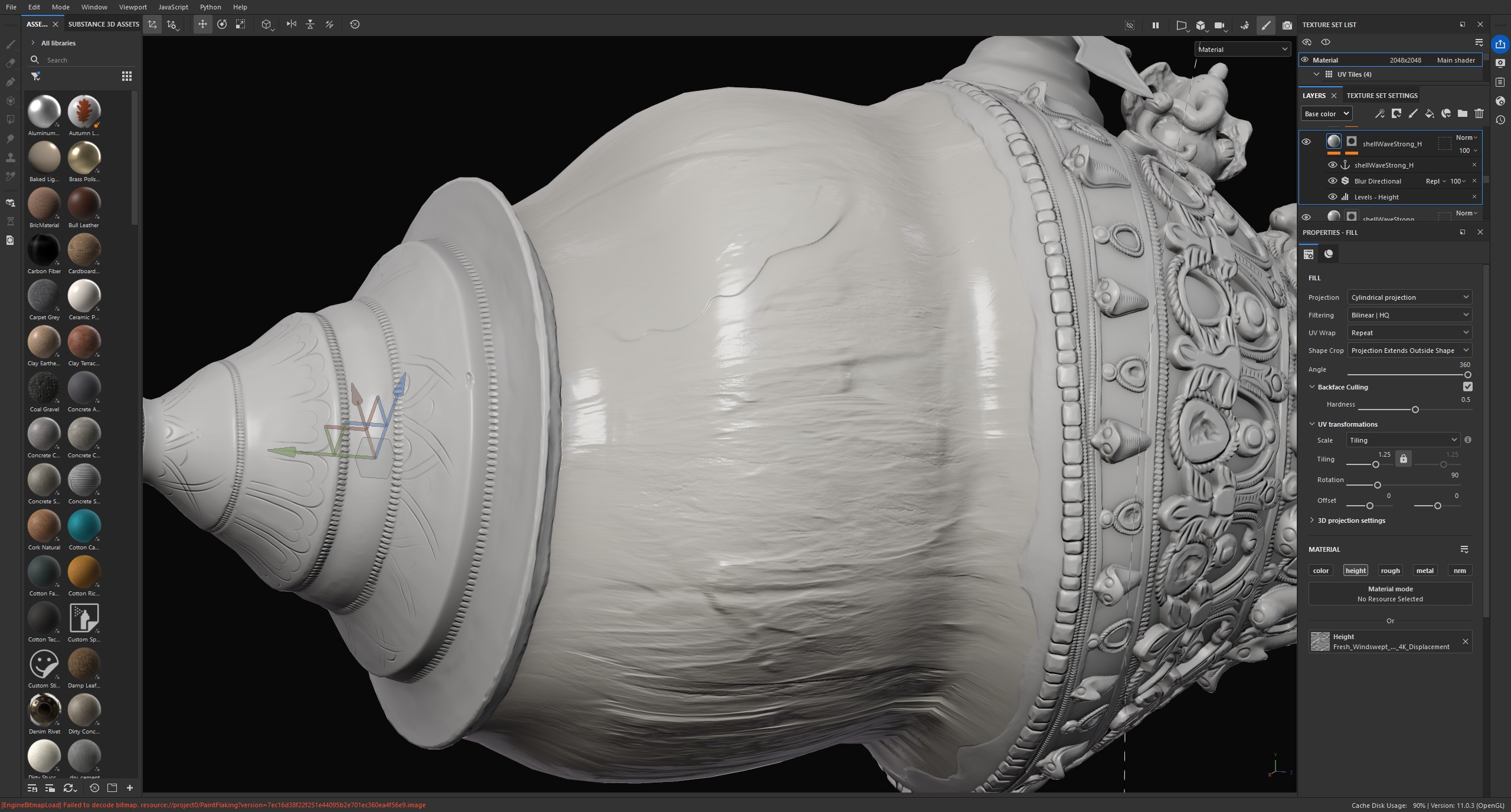
In addition to the snow material, I used several other materials with similar surface patterns to introduce more variation in the relief, color, and roughness.
Next, I worked on the wax connecting the shell to the metal. To create the mask, I used Photoshop and the Color Range tool.
Based on this mask, I created two layers with different masks: one solid mask to isolate the wax area, and another with a grayscale gradient for additional detail.
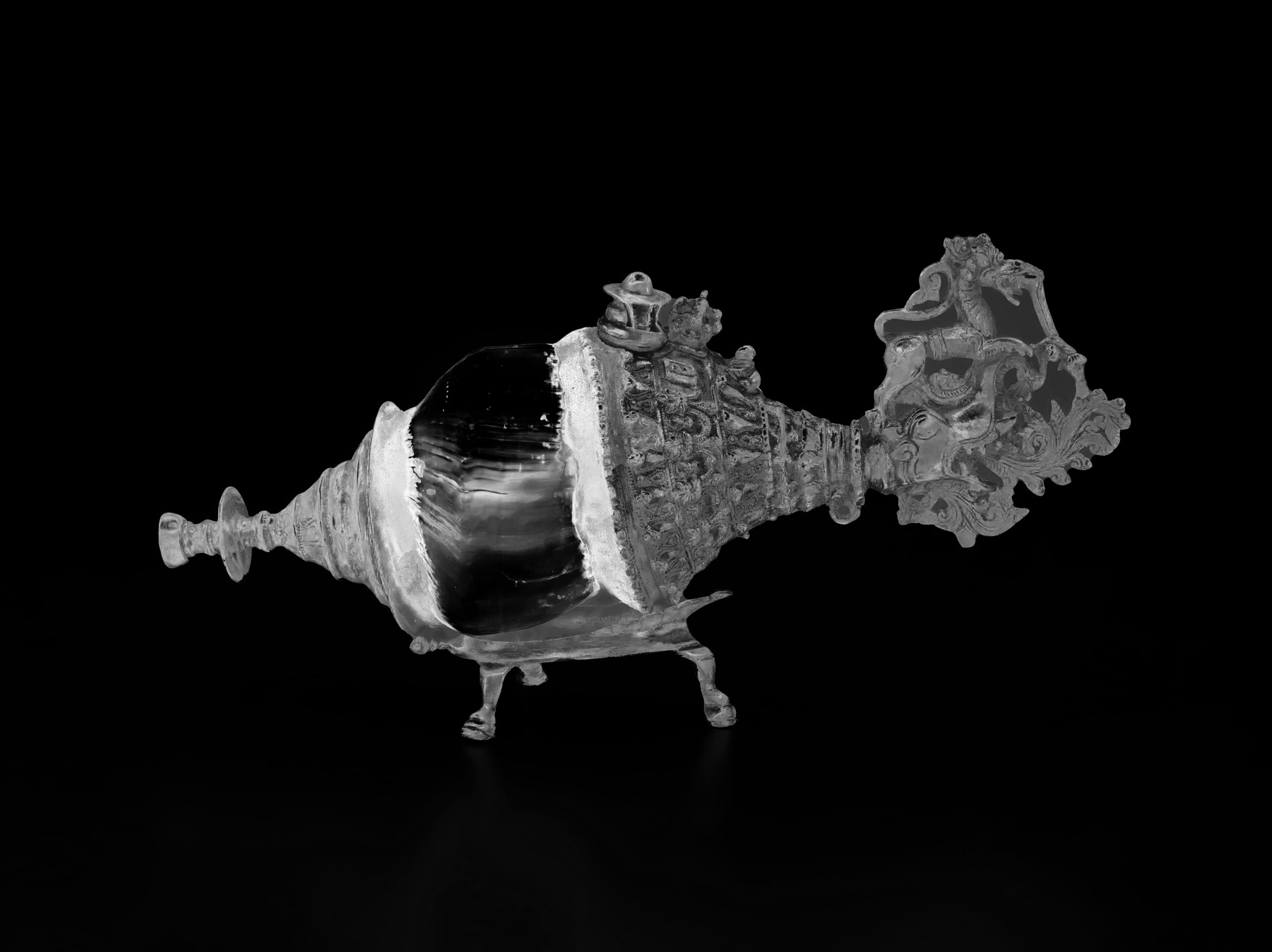
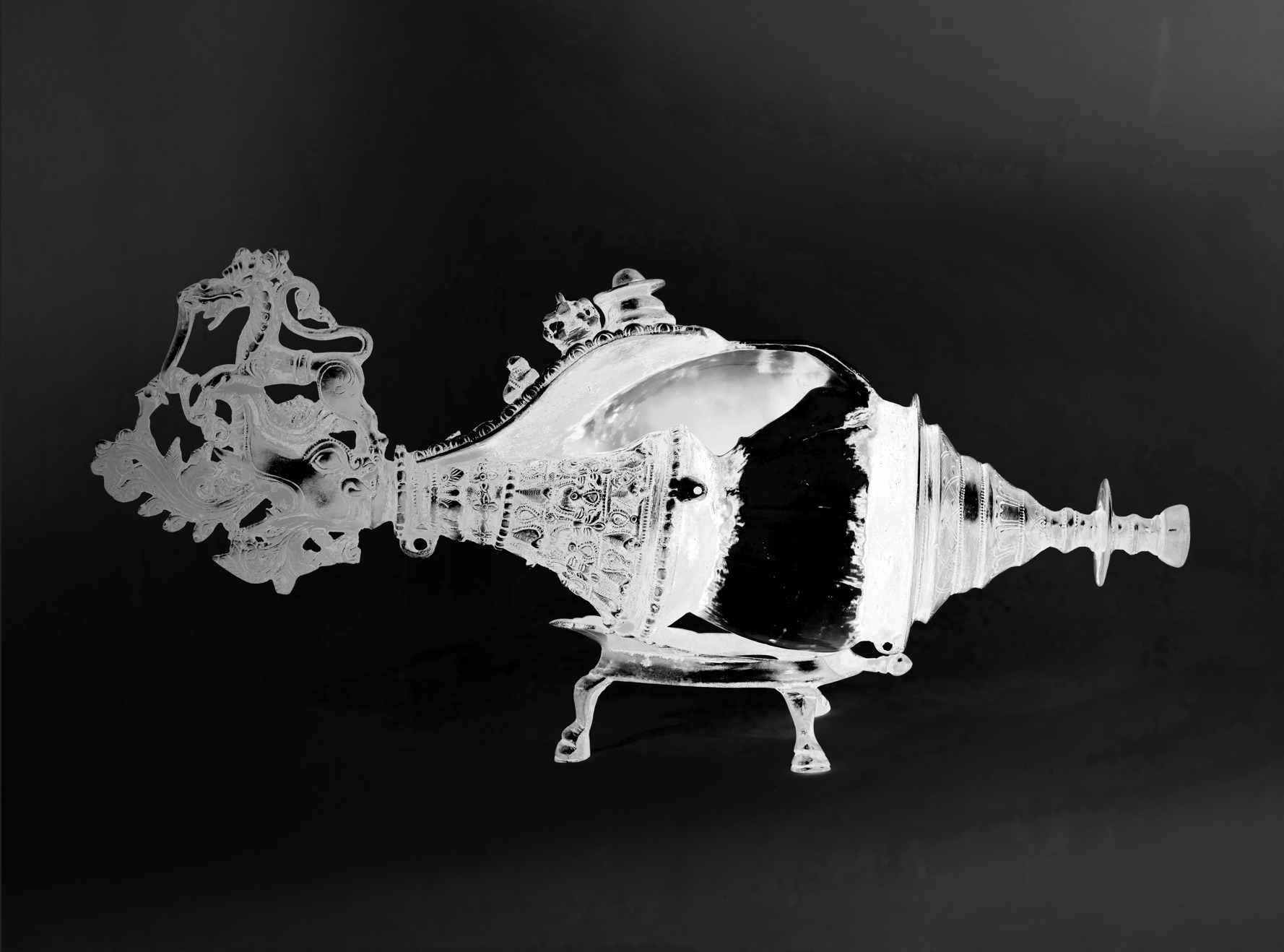
I combined these masks and added extra grunge maps to create layers with varying opacity and variations in color, roughness, and height. I also frequently used the Color Correction filter to adjust the color and introduce additional color variation.
The final wax layer was a dust layer. For this, I used an Anchor Point containing the Height and Normal microdetails I had added earlier.
I also divided the metal into two parts: the rear cylindrical section and the remaining metal elements at the front.
To texture the metal, I used the following approach: base color + color variations, roughness, and metallic effects + details on the Height and Normal channels.
Next came a separate folder with patina and dirt, built using the same logic: many variations with details emphasized using the Normal and Height channels.
The front metal section took the most time to texture.
The overall process was the same as for the back, but I used a wider variety of materials. To reduce the number of layers used for color variation, I added gradient-based grunge maps to the Base Color channel and placed a Gradient filter above them, setting the colors I needed. These colors followed the gradients defined by the grunge maps.
That’s how I added dust, dirt, and metal oxidation. You can read more about this method in the tutorial by 3D Artist Adrian Roose.
I also used masks created in Photoshop with Color Range, based on the model references.
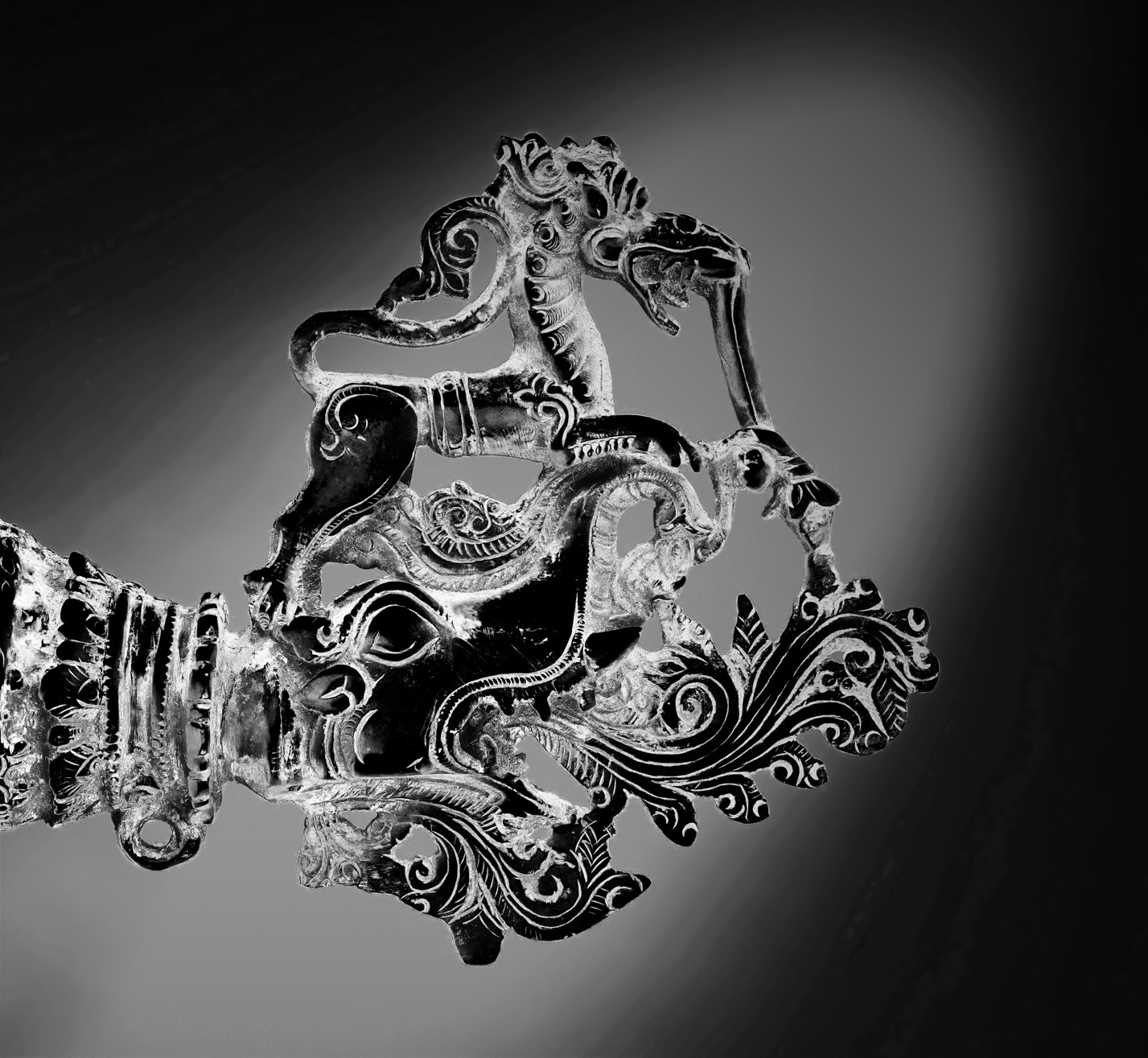
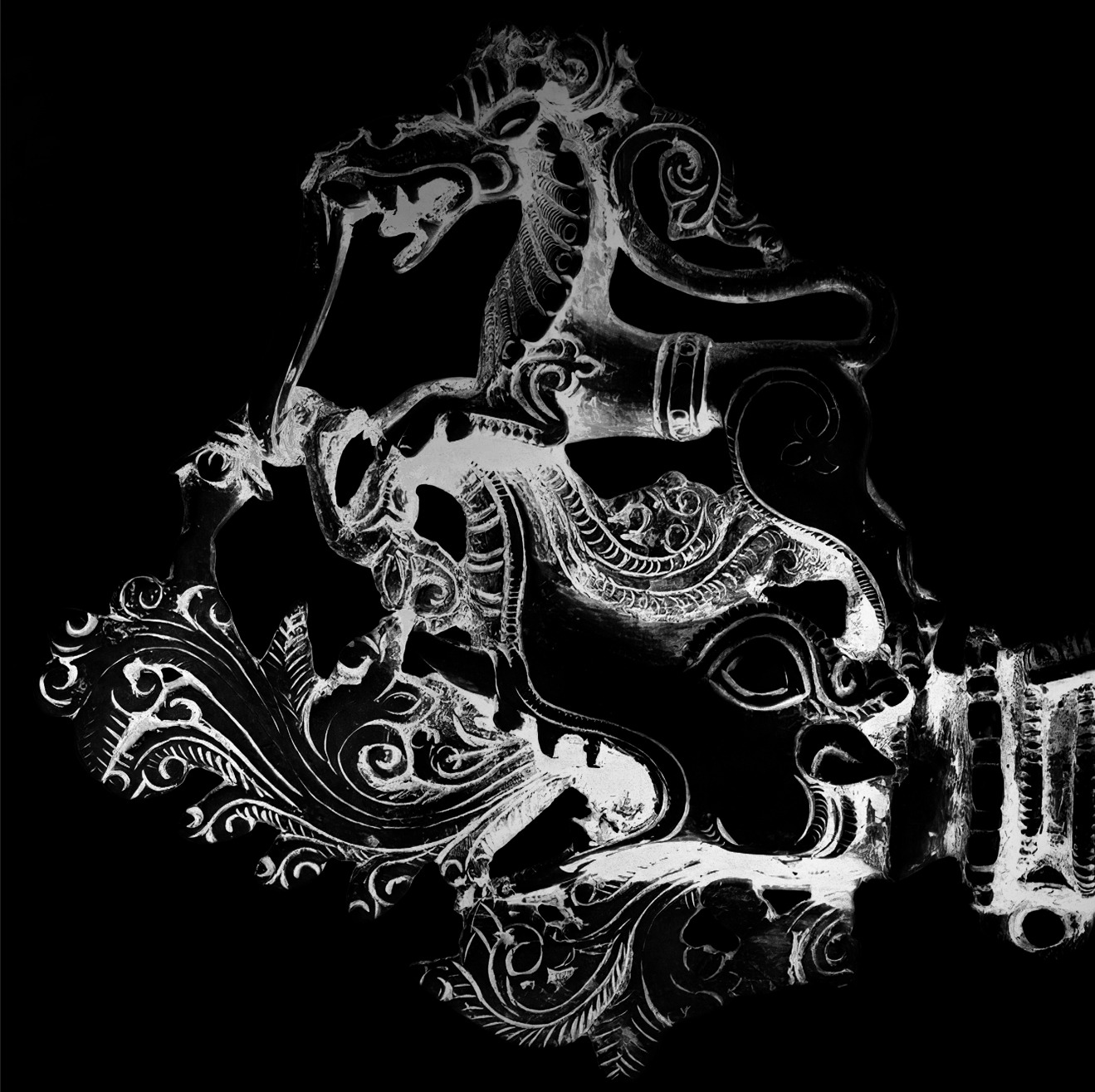
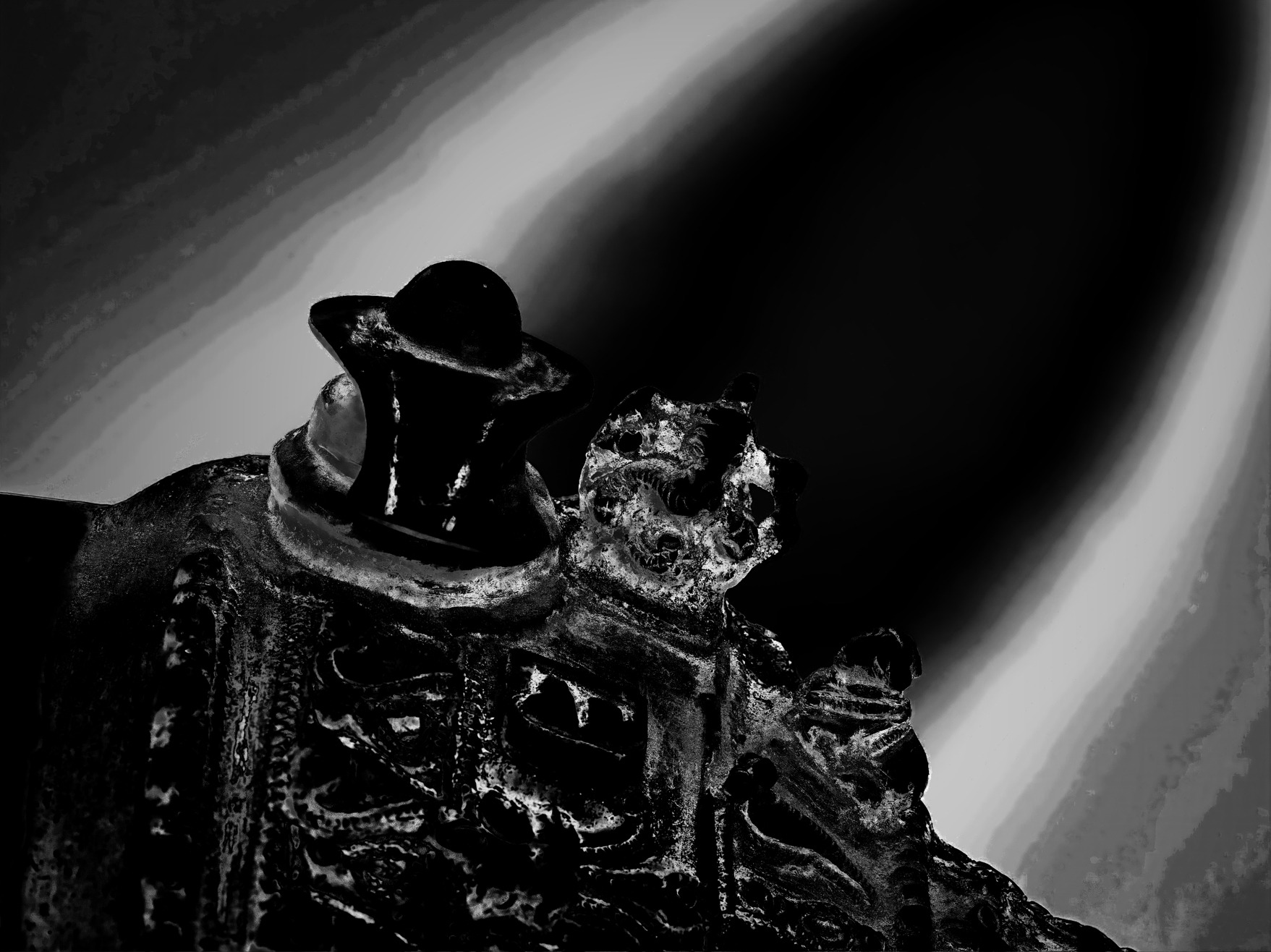
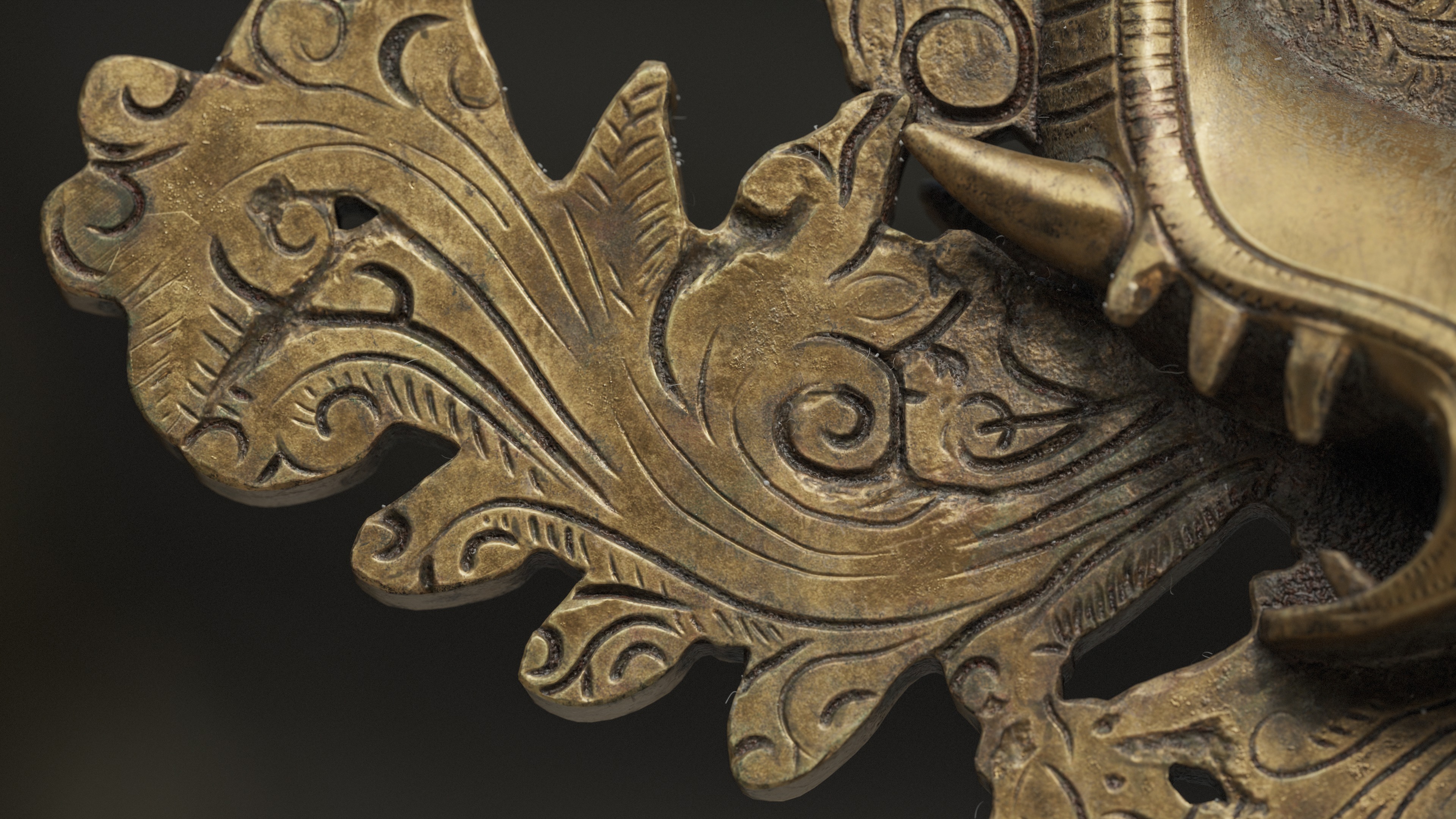
In addition to color variation, I added micro-scratches to the surface and emphasized them using modifiers. These small details create additional highlights and reflections.
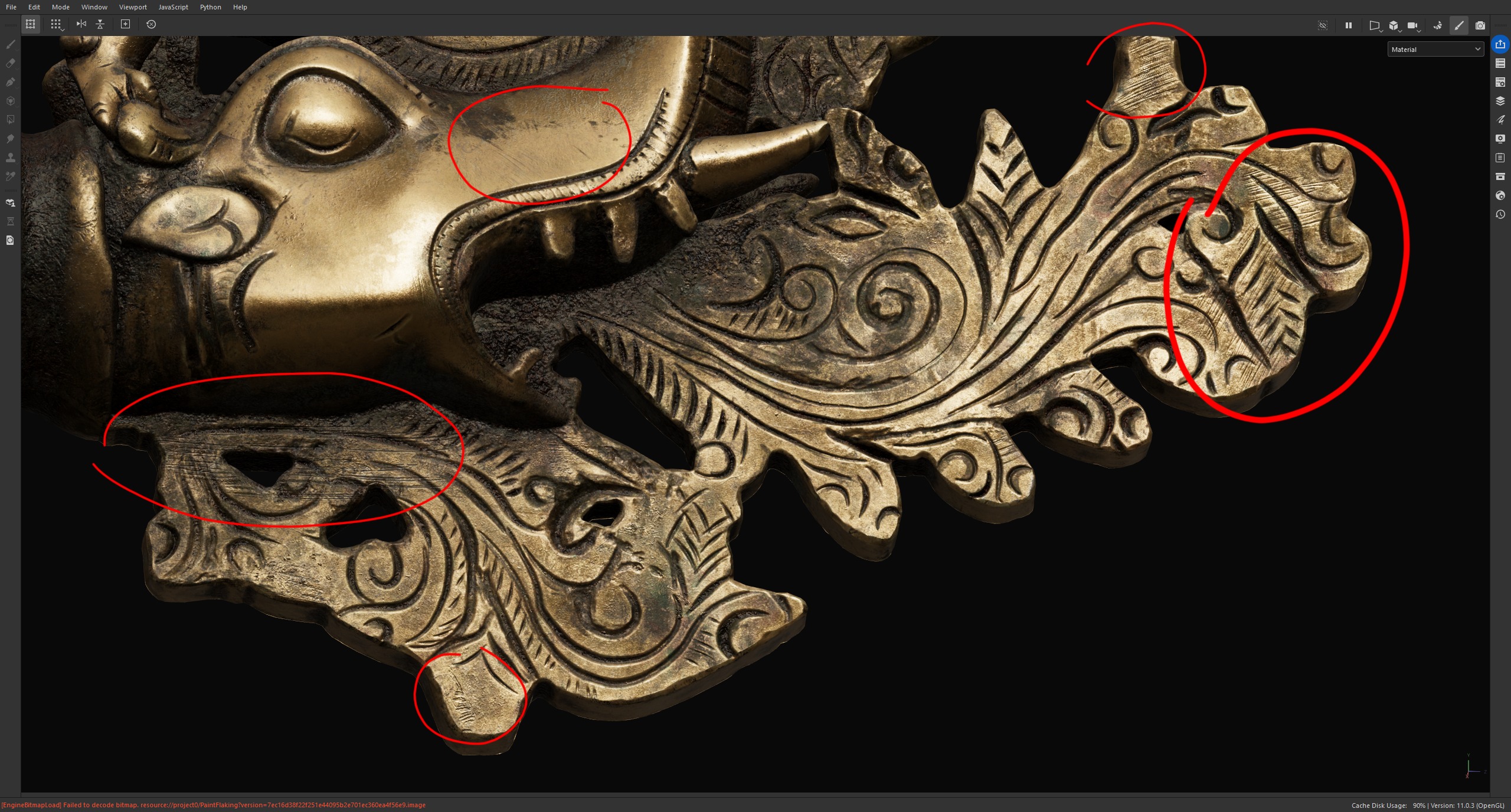

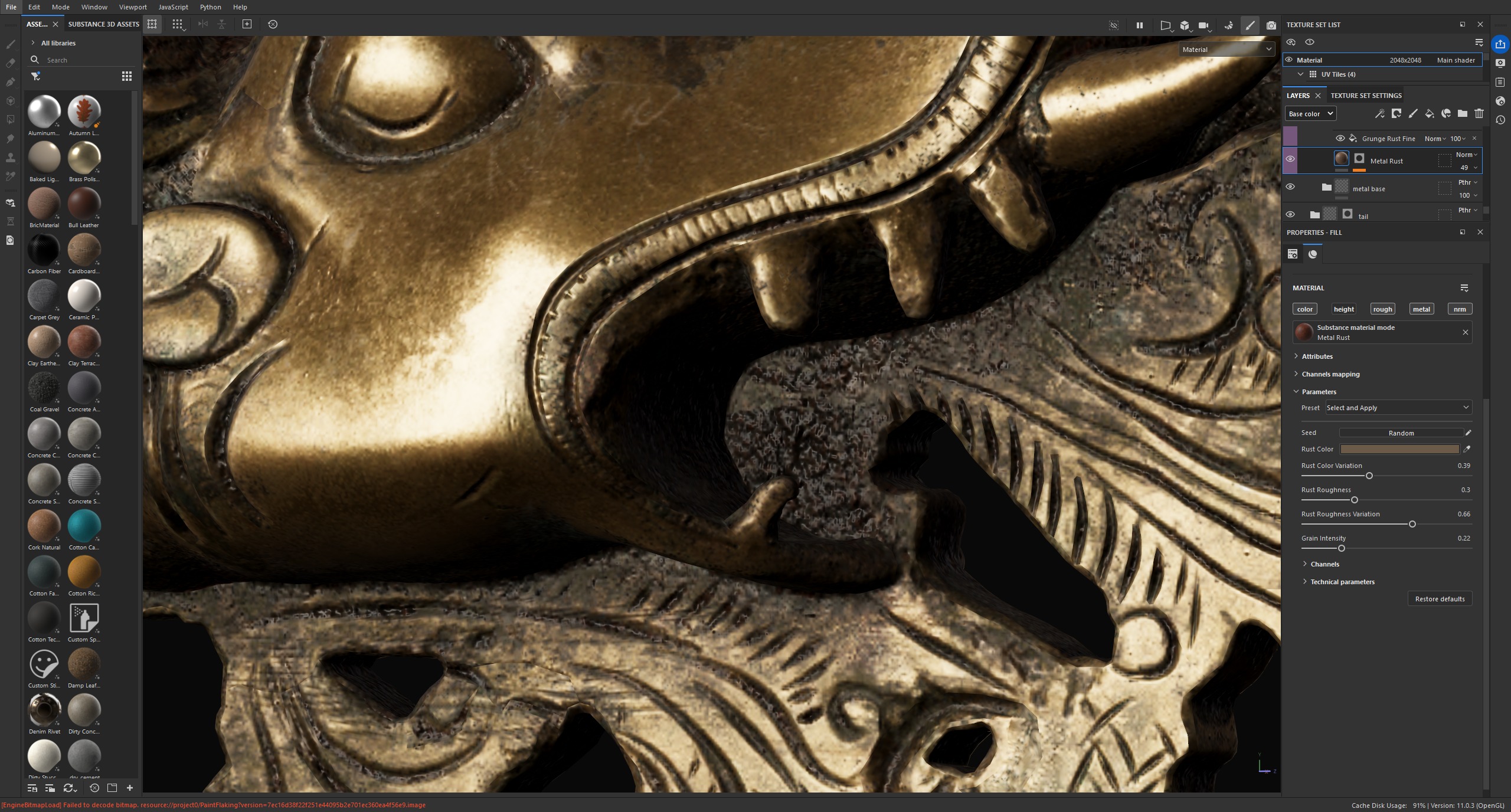
To create the wet-dirt effect, I used a rust material and lowered its roughness.
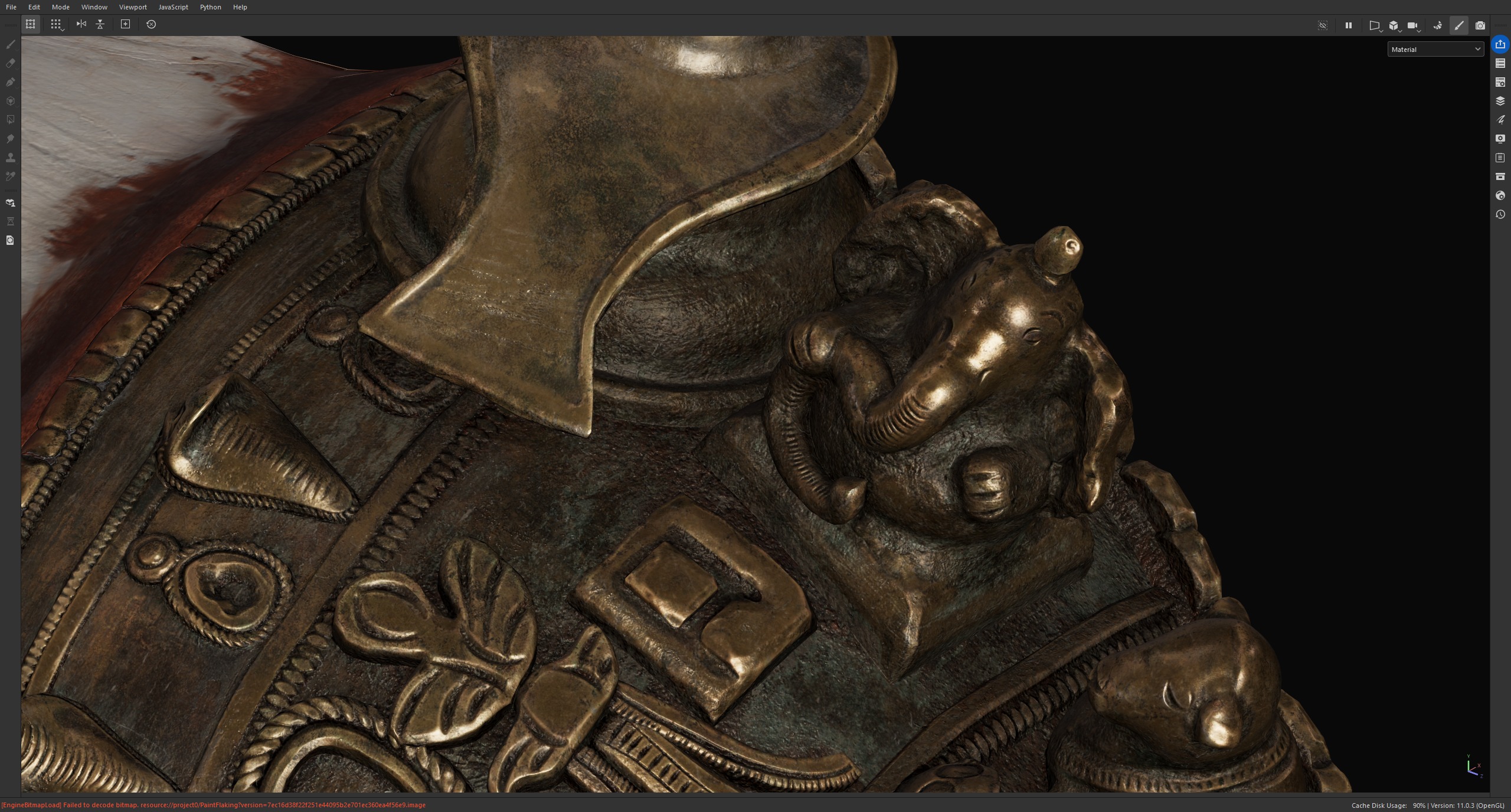
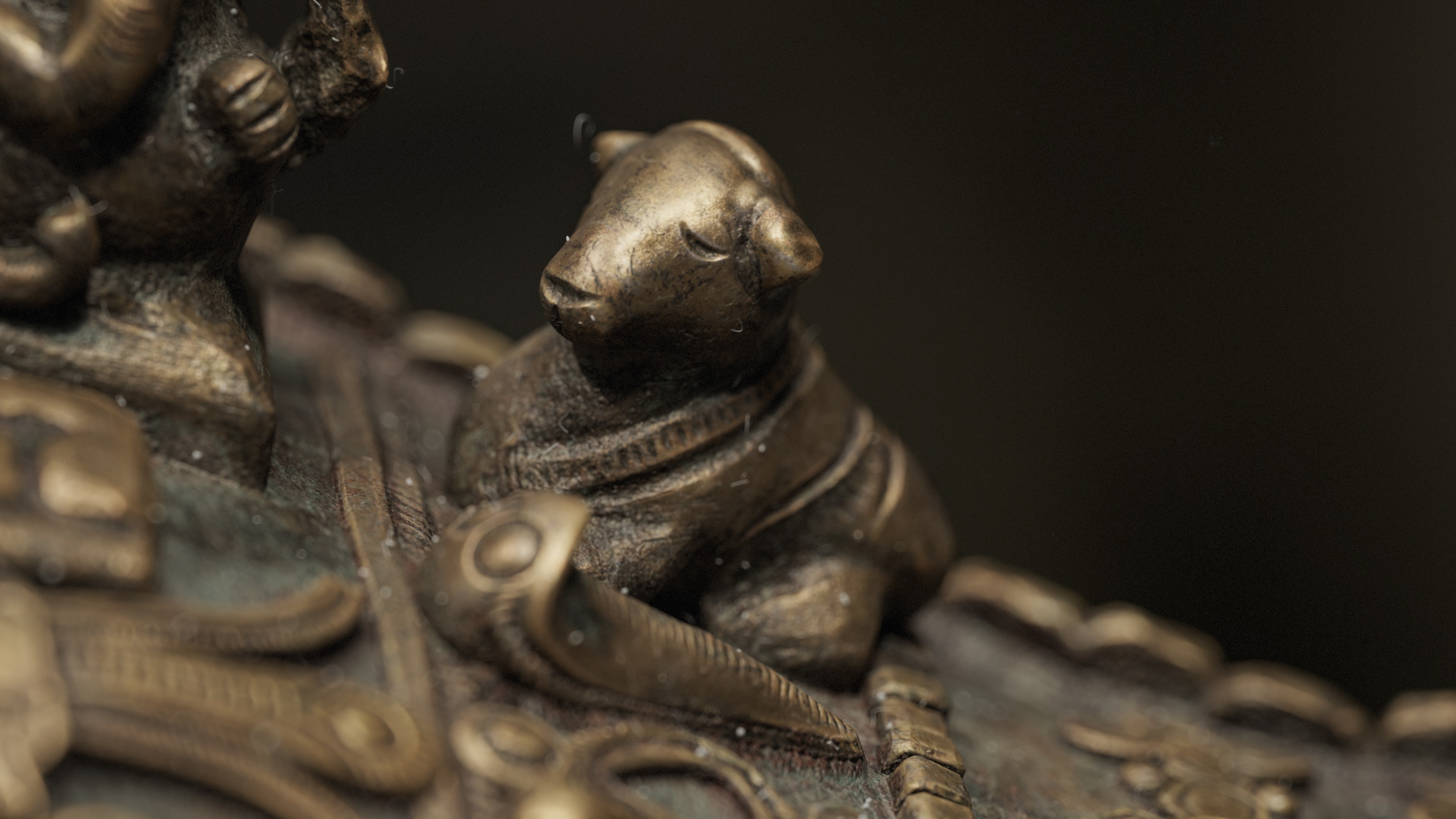
Finally, I added a gray layer with a dust mask, and another identical black layer with a mask shifted slightly to the side. This creates the illusion of shadows cast by individual dust particles.
I also want to point out that you should not get too hung up on just one piece of work or expect it to turn out perfect on the first try. Texturing is not a linear process.
Sometimes you need to return to layers created at the beginning and rework them. In other cases, you may need to adjust another material so that it blends better with the current one.
The final result depends on the overall quality of the work, not on any single element in isolation.
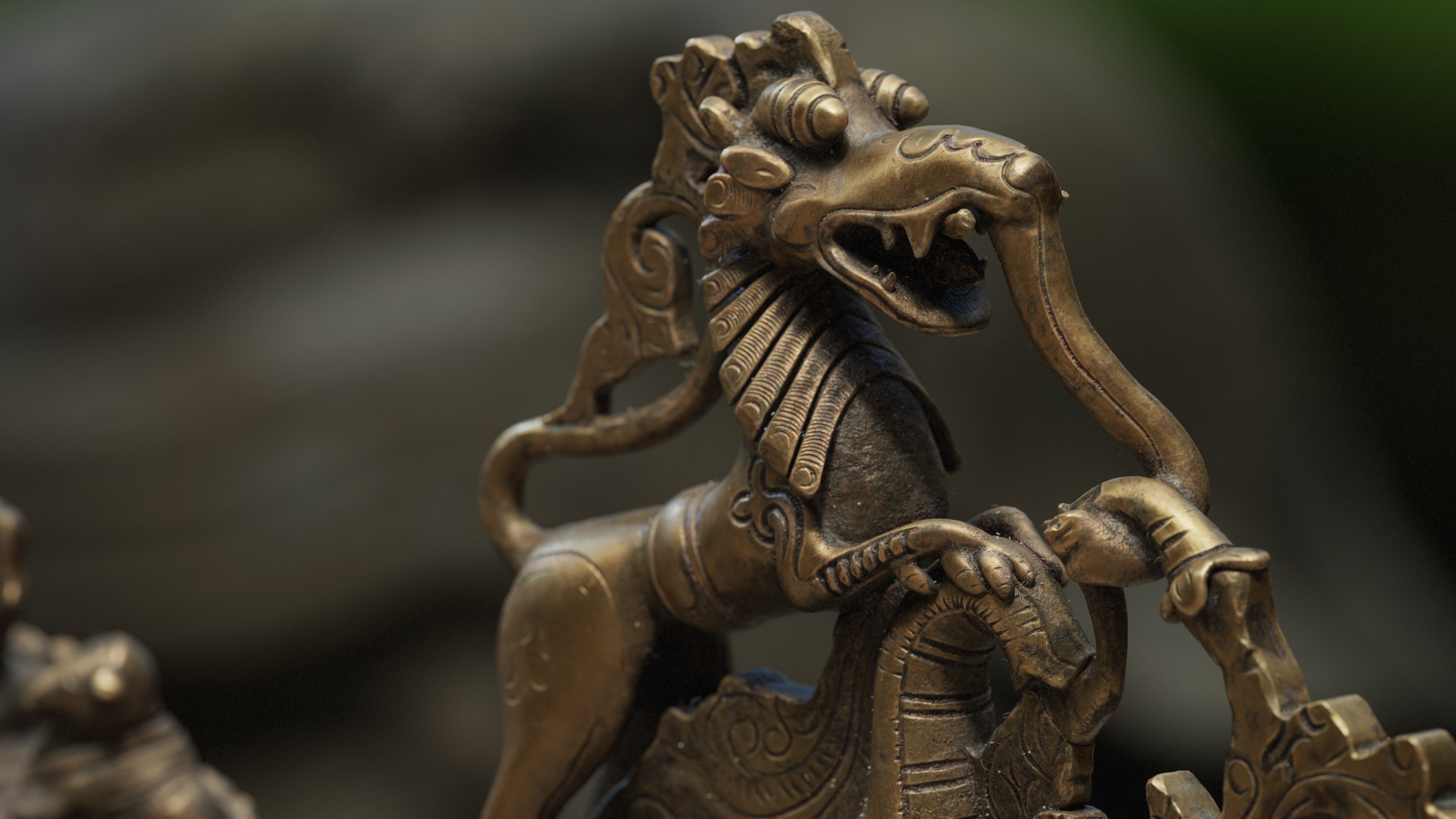
Final Details Before Rendering
After texturing, I returned to the low-poly model and added a Lattice Modifier to slightly deform elements that looked too straight or uniform.
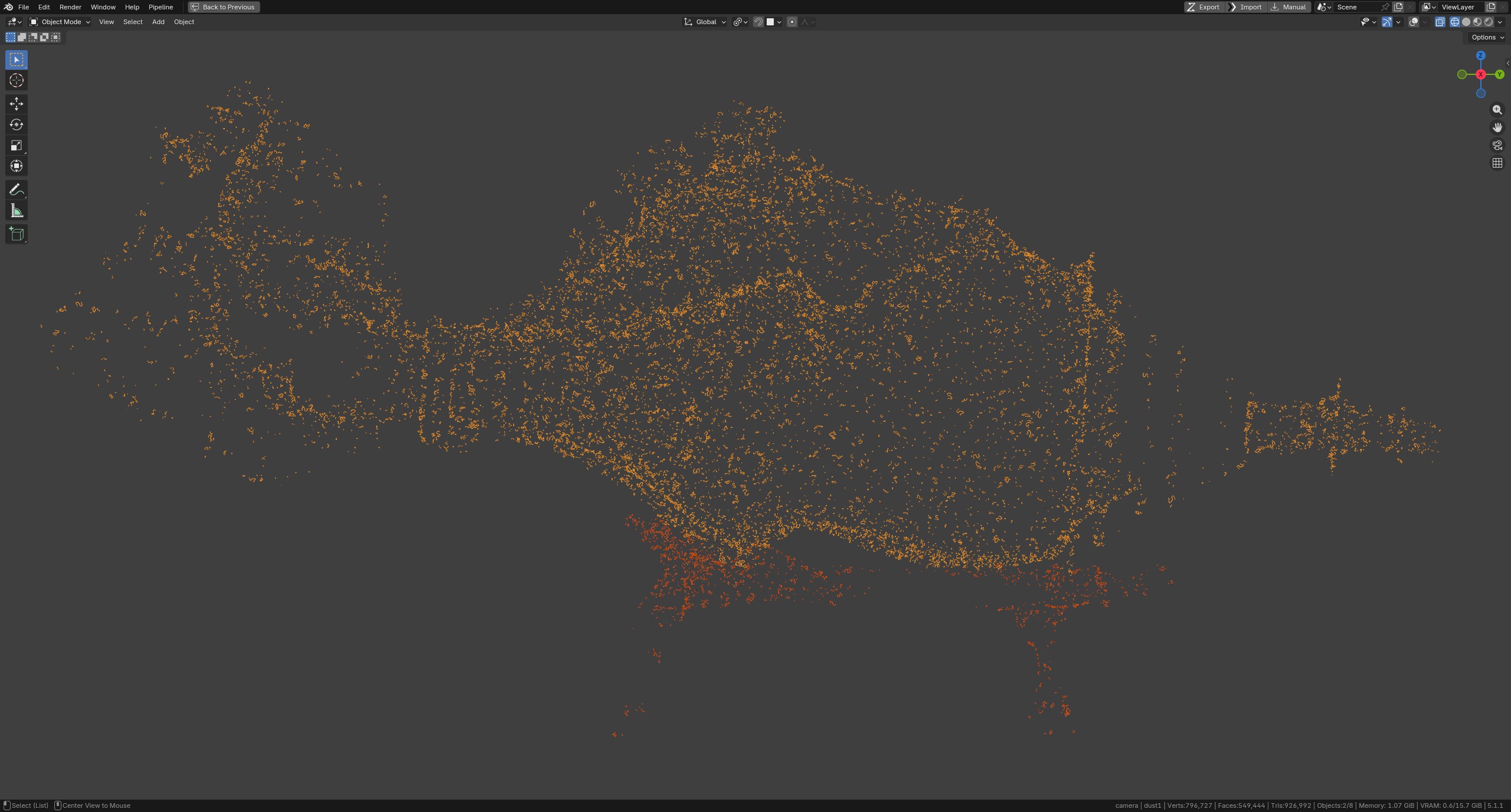
I was asked several times about the dust particles scattered across the model, so here is how I created them.
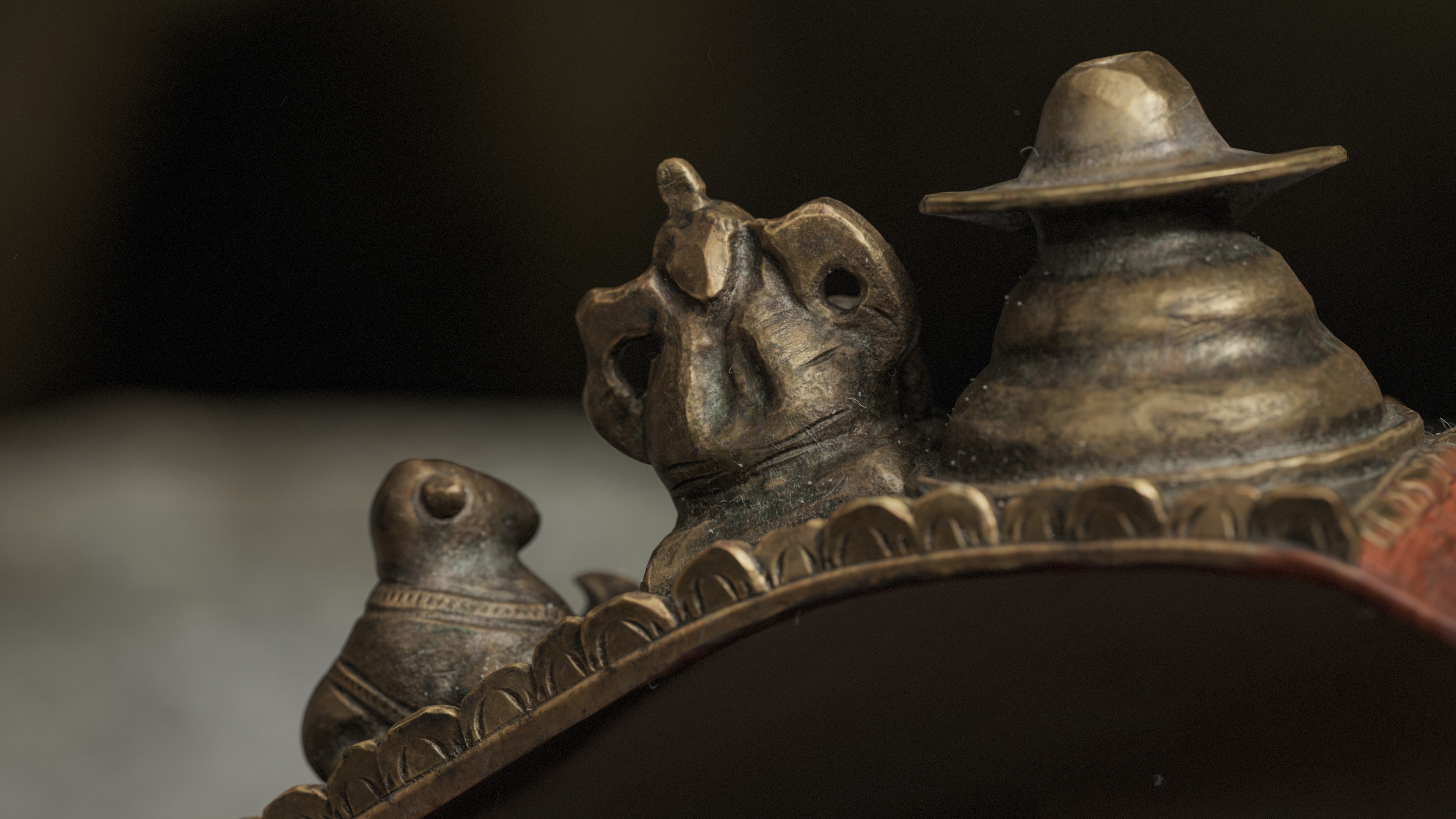
The dust particles themselves are simple low-poly shapes, while the hair-like strands are strips made of faces. I distributed them across the surface using Geometry Nodes.
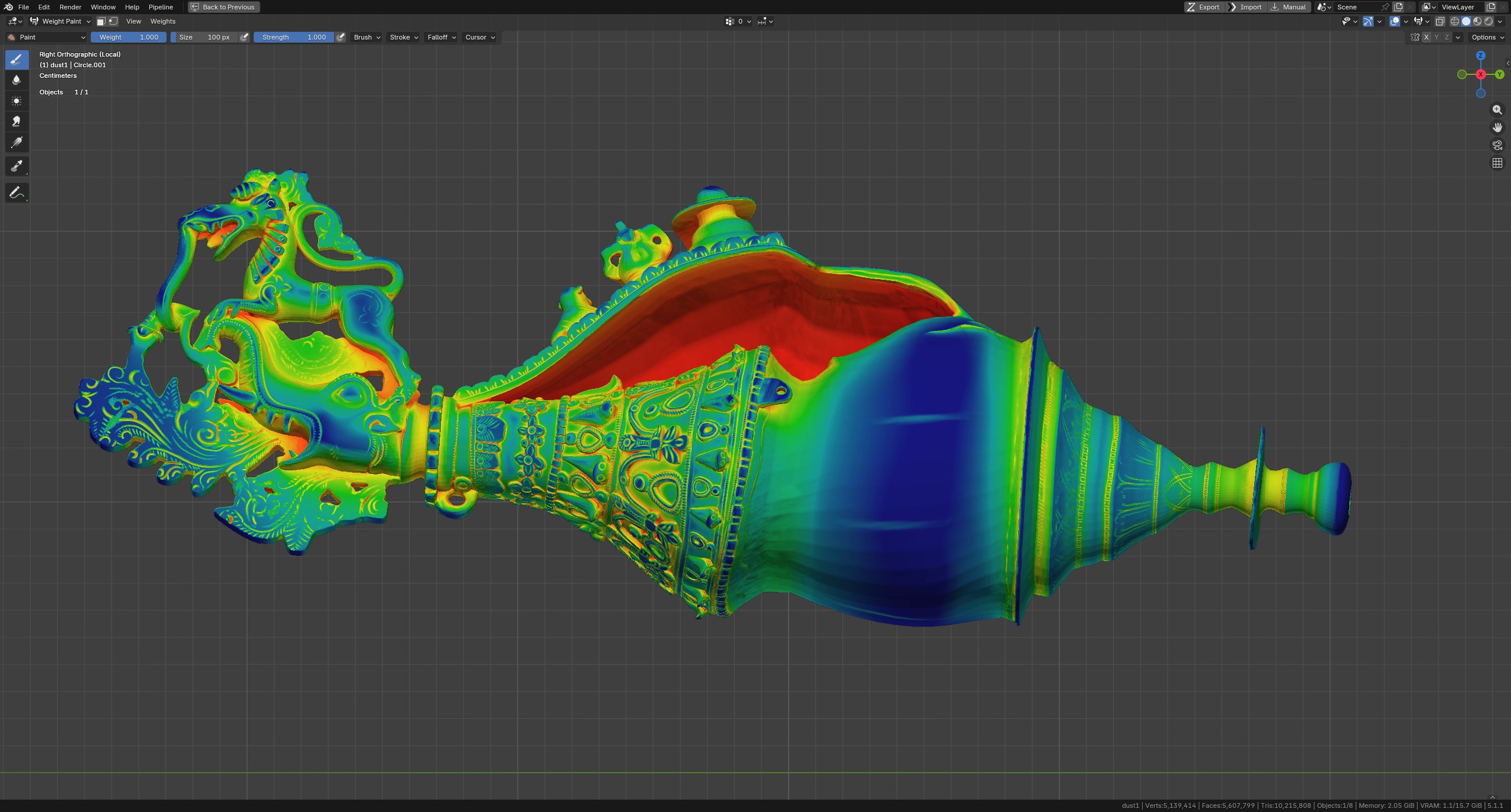
To prevent the dust from appearing across the entire model, I converted an AO texture into Weight Paint data and used it as a mask in Geometry Nodes.
The YouTube channel Mark Alloway has a video called BLENDER: Convert image texture to vertex group, which demonstrates how to do this.
An important detail: To ensure sufficient resolution for the Weight Paint map, the model needs to have a sufficiently dense mesh. To achieve this, I created a copy of the model and subdivided it several times. I later used this copy as the basis for the Geometry Nodes.
The node setup is based on a standard surface-distribution workflow and looks like this:
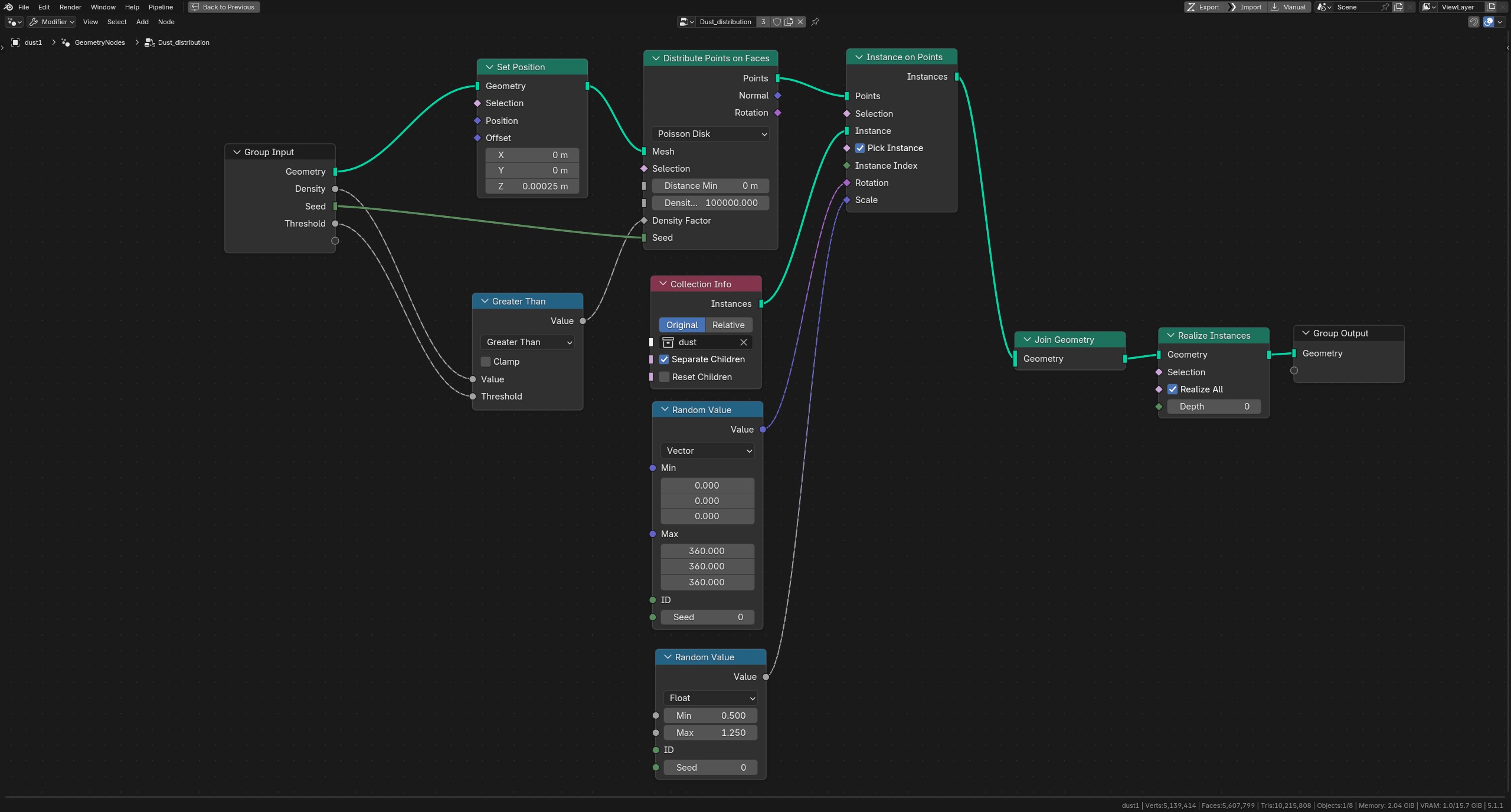
I will explain only the key parts.
In the Group Input node, the density parameter controls the use of vertex paint information.
The Threshold parameter defines the threshold for the AO mask: the higher the value, the fewer surface areas pass the selection, and the less dust appears on the model. Conversely, a lower value allows the dust to be distributed across a larger surface area.
The Set Position node offsets the dust particles along the Z axis relative to their local coordinates.
The Realize Instances node converts instances into actual geometry after the modifier is applied. The particles can then be exported to Marmoset along with the model.
Render
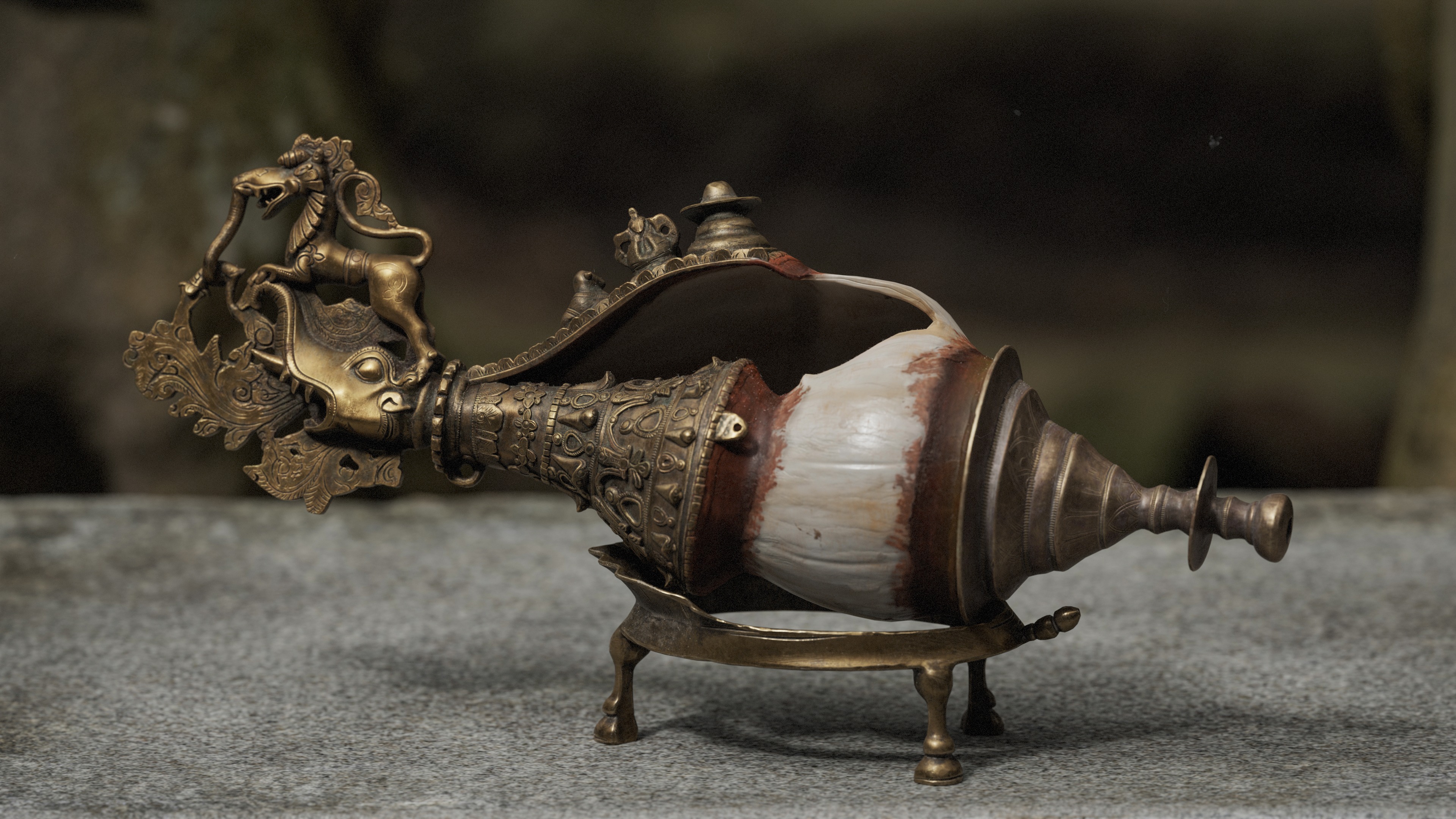
I rendered in Marmoset Toolbag. The renders were in 4K with the following settings.
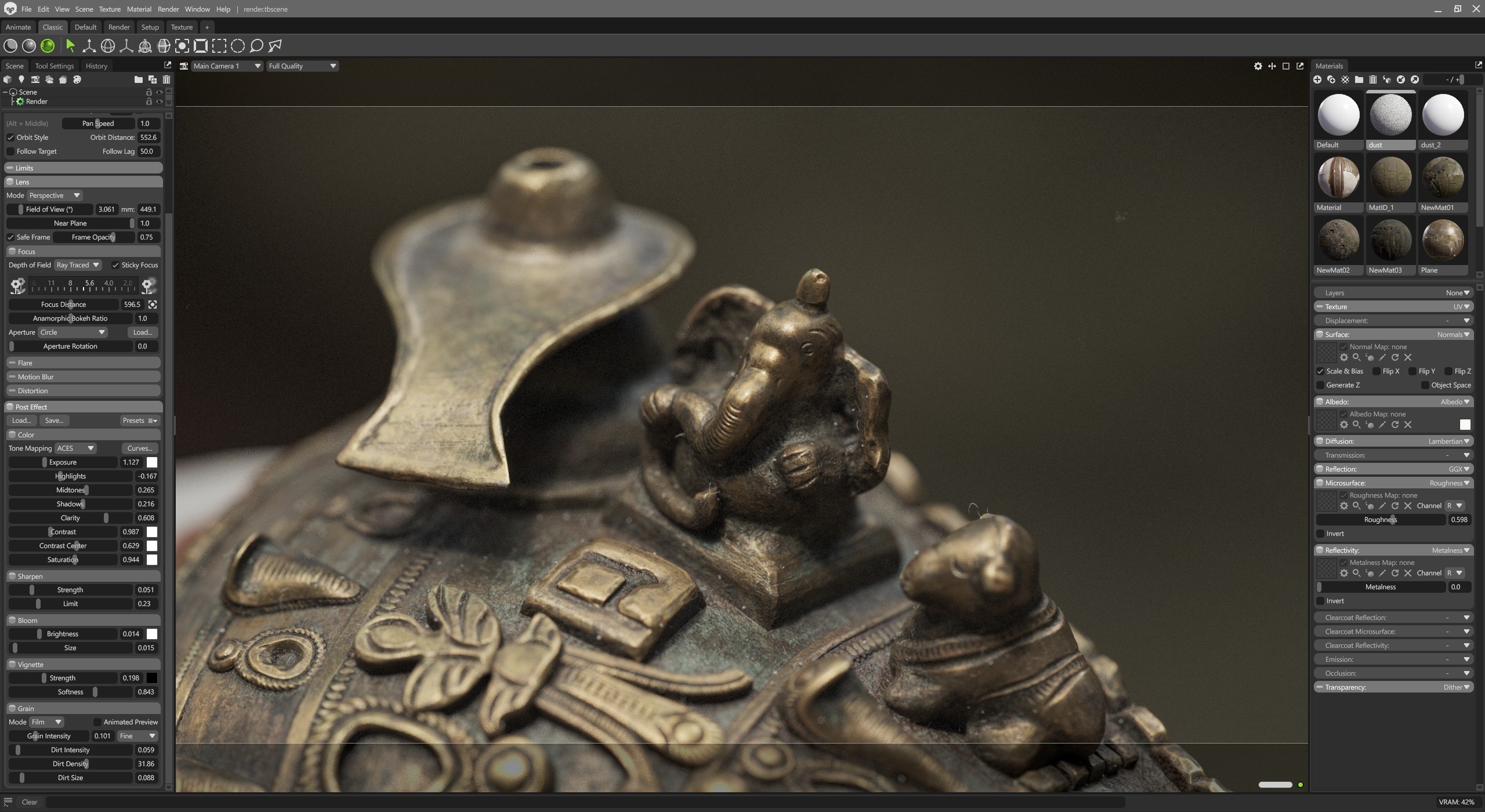
I assembled the scene using thematically similar assets from the Quixel Megascans library. If the background stood out too much in certain shots, I adjusted it by blending the Base Color texture with Marmoset’s built-in color palette.
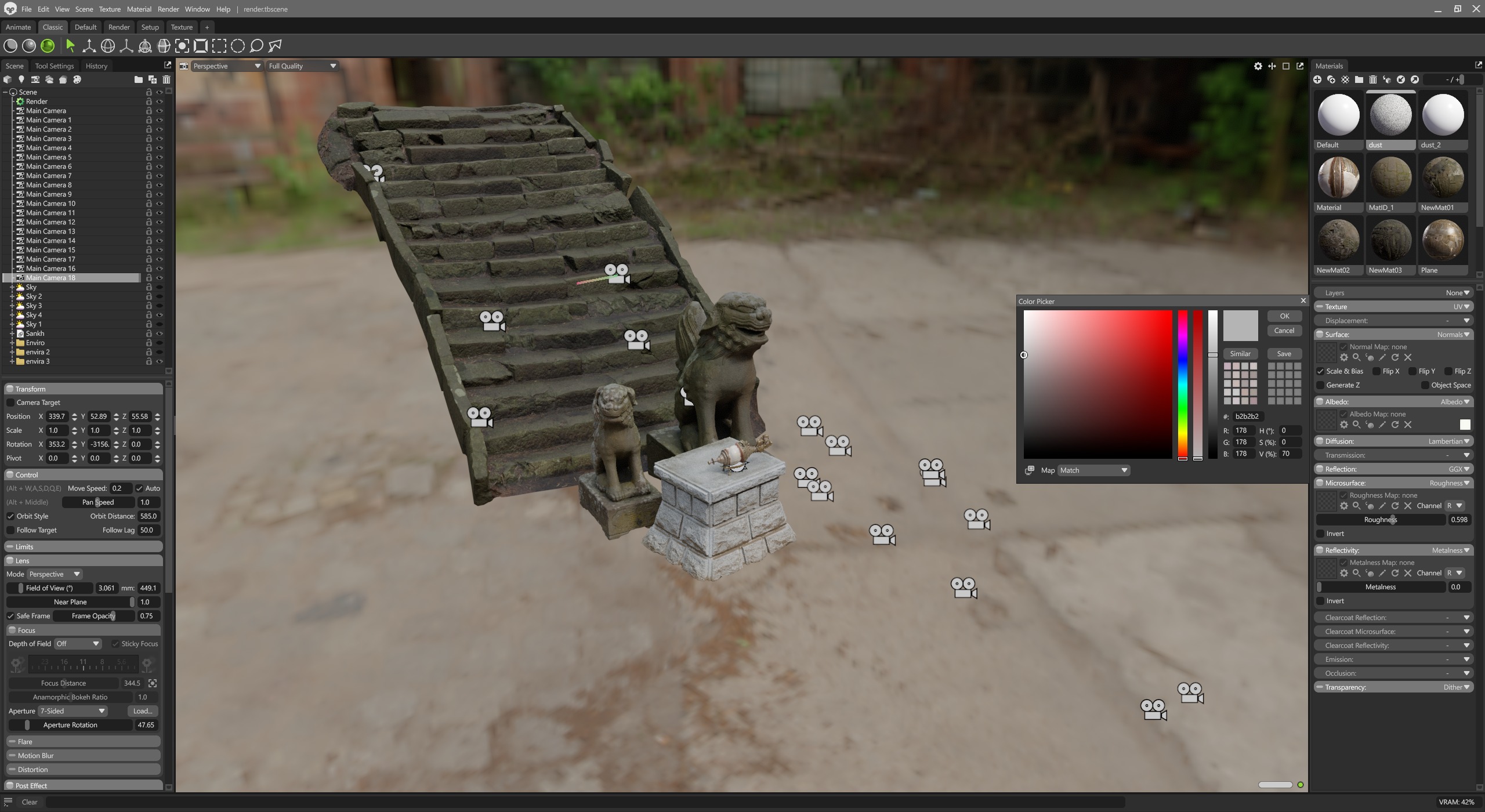
For lighting, I used the same HDRI map imported from Substance Painter: Gdansk Shipyard Buildings.
Conclusion
That’s basically it.
Perhaps I forgot to mention some details, but many things are decided on a case-by-case basis, depending on the situation that arises during the work process.
Thanks for your attention 🙂
Read more articles
You might also like these articles.